

Google Search Console (GSC) is a free tool from Google that shows you how your website performs in Google Search. Think of it as a direct line of communication between your site and Google’s crawlers.
It tells you:
- Which search queries are bringing people to your site
- Which pages are indexed and which are being ignored
- Whether Google can crawl your site without errors
- How your Core Web Vitals are performing
- If you have any manual penalties or security issues
GSC vs. Google Analytics What’s the Difference?
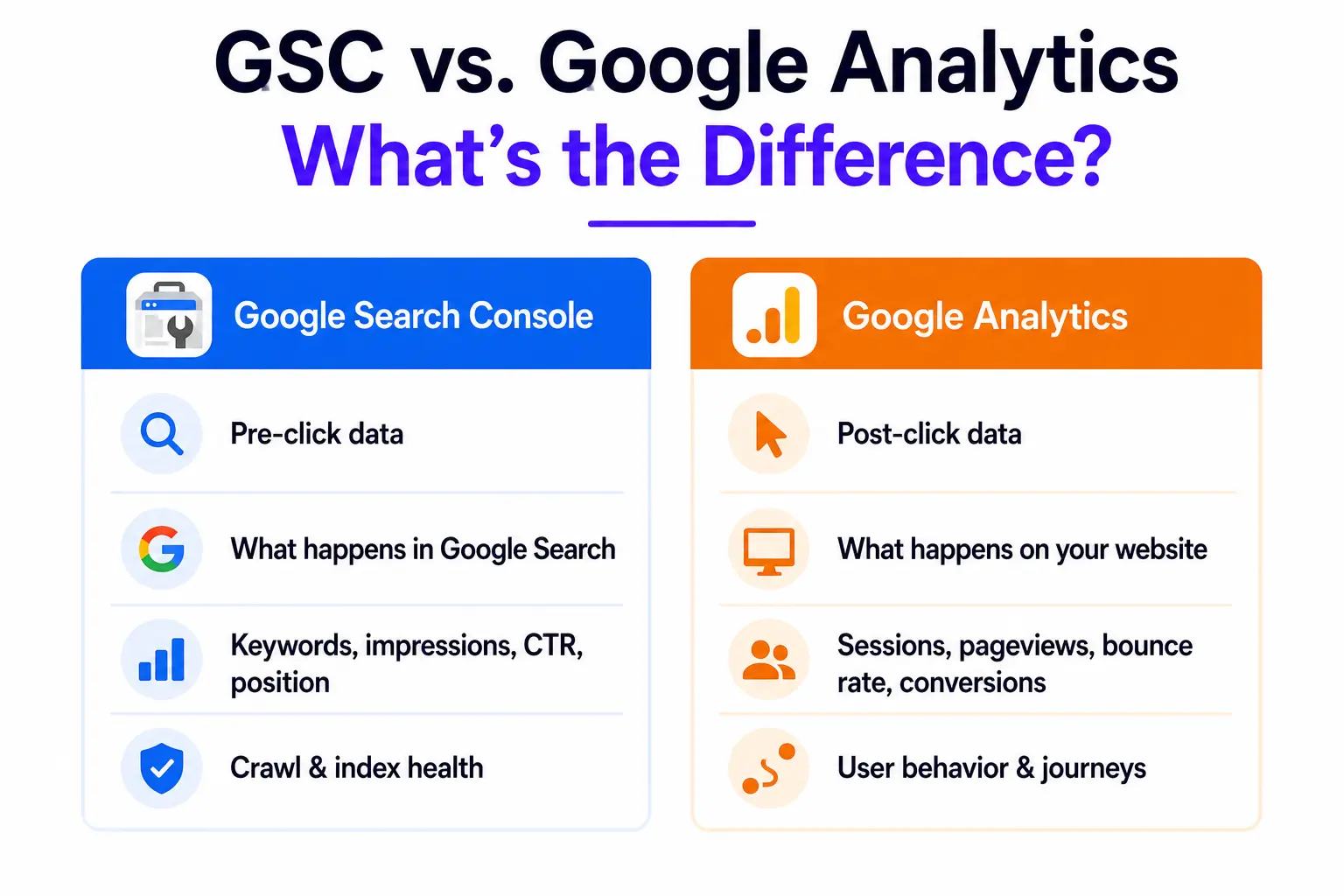
People mix these up all the time. Here’s the simple version:
| Google Search Console | Google Analytics |
| Pre-click data | Post-click data |
| What happens in Google Search | What happens on your website |
| Keywords, impressions, CTR, position | Sessions, pageviews, bounce rate, conversions |
| Crawl & index health | User behavior & journeys |
Both tools are essential. Neither replaces the other. But for understanding what Google thinks of your site, GSC is the one you need.
The reason a structured workflow matters: most people only open GSC when there’s a problem a traffic drop, a manual action email. By then, you’re already behind. A consistent workflow lets you catch issues early and act on opportunities before your competitors do.
Setting Up GSC the Right Way (One-Time Foundation)
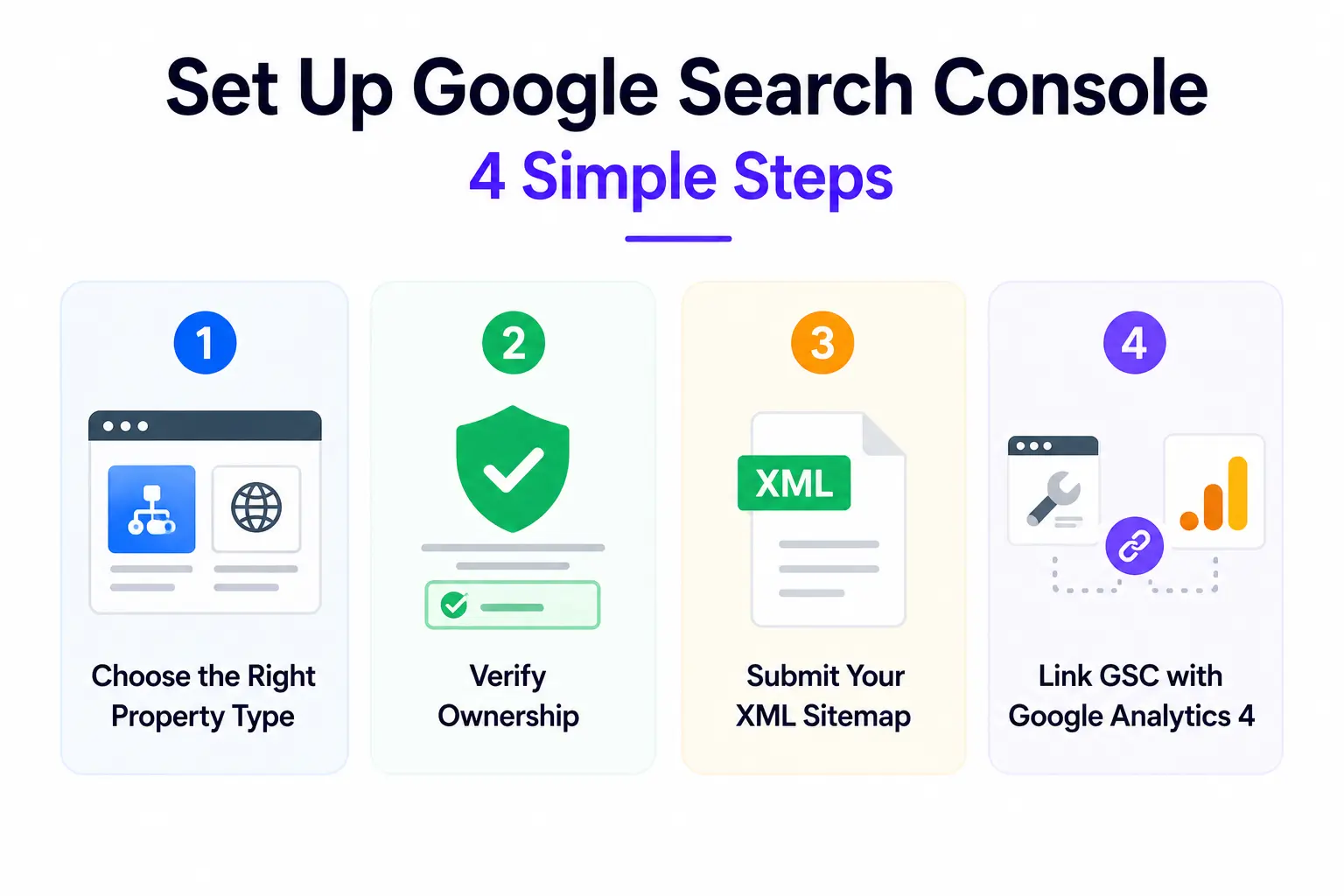
Before any workflow makes sense, your setup needs to be solid. These are one-time steps, but they affect every report you’ll ever look at.
Step 1: Choose the Right Property Type
When you add your site to GSC, you’ll pick between two property types:
- Domain Property: covers your entire domain including all subdomains (www, http, https, etc.). Best for most sites.
- URL Prefix: covers only a specific URL. Easier to verify, but you might miss data from other subdomains.
Step 2: Verify Ownership
Google needs to confirm you actually own the site. There are several ways to do this:
- DNS TXT record: best for Domain properties. Add a TXT record in your domain registrar.
- HTML meta tag: paste into your site’s <head> section. Works well with WordPress + SEO plugins.
- HTML file upload: download a file from GSC and upload it to your root directory.
- Google Analytics / Tag Manager: automatically verifies if you use the same Google account.
Step 3: Submit Your XML Sitemap
Your sitemap is like handing Google a map of your entire website. It speeds up discovery and helps ensure important pages don’t get missed.
Go to Sitemaps in the GSC sidebar, enter your sitemap URL (usually yourdomain.com/sitemap.xml), and hit Submit. Once processed, GSC will show the number of submitted vs. indexed URLs. If those numbers are far apart, that’s your first clue something needs attention.
Step 4: Set Up User Access
If you work with a team, you can add users under Settings > Users and Permissions. There are three roles to know:
- Verified Owner: full access. Can change settings and manage users.
- Delegated Owner: same permissions as verified owner, granted by one.
- User: can view data but has limited settings access.
Step 5: Link GSC with Google Analytics 4
This is optional but highly recommended. Linking the two tools lets you see organic search performance alongside on-site behavior so you can understand not just who clicked, but what they did after landing on your page. Do this inside your GA4 settings under ‘Search Console links.’
The Core Google Search Console Workflow
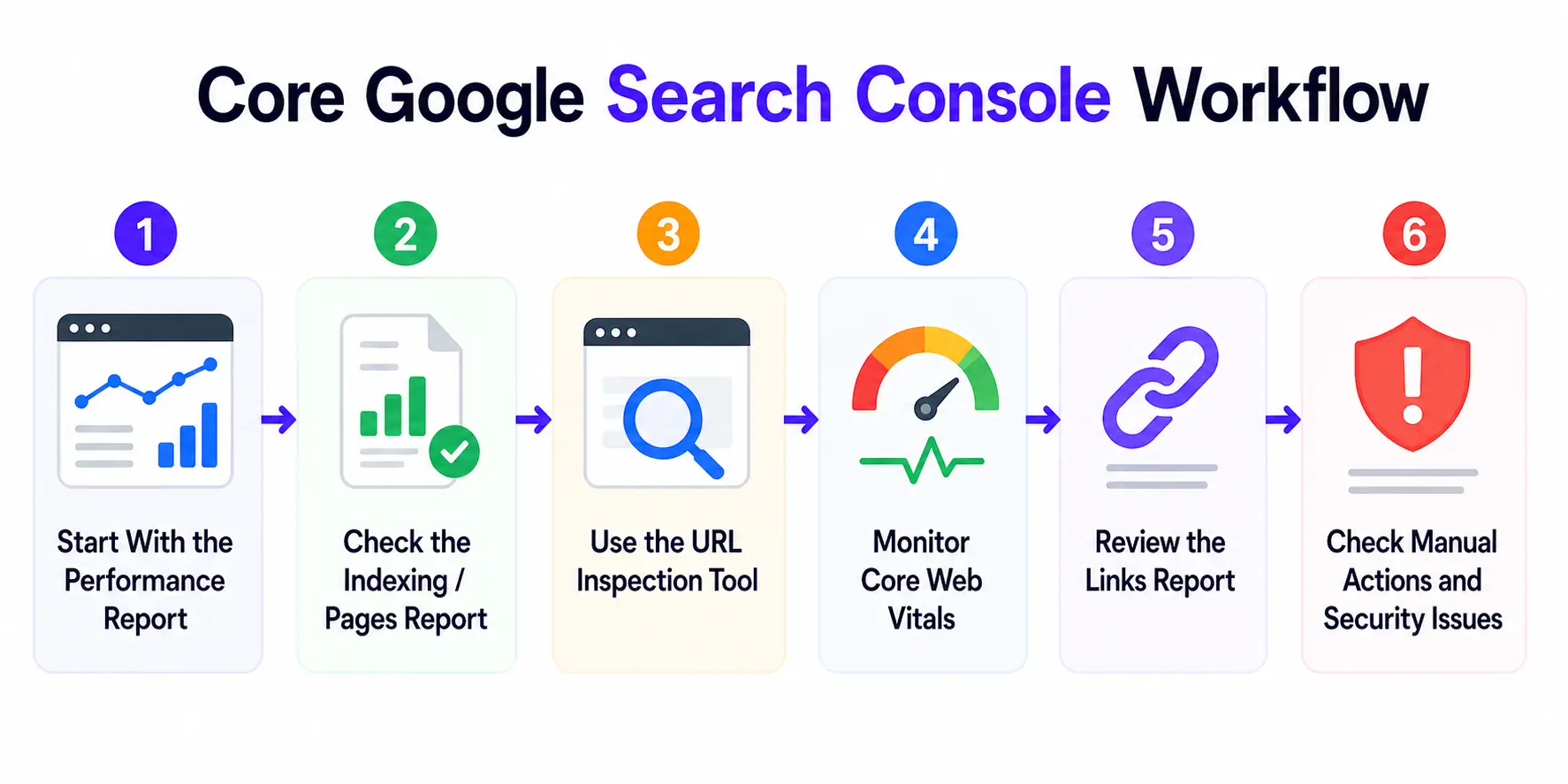
This is what separates sites that grow steadily from sites that plateau. The Google Search Console workflow below is built around the reports that move the needle. Use it consistently, and you’ll always know where to focus your energy.
a. Start With the Performance Report
The Performance Report is the heartbeat of GSC. It shows clicks, impressions, click-through rate (CTR), and average position for all your pages and keywords data you literally cannot get anywhere else for free.
Here’s how to work through it effectively:
- Set your date range to the last 90 days for a meaningful trend view.
- Go to the Queries tab and sort by impressions descending.
- Filter by average position between 8 and 20. These are your quick wins Google already considers your content relevant enough to show it, but not quite enough to put it on the front page.
- Update, expand, or restructure the pages ranking in that zone. You’re polishing, not rebuilding
b. Check the Indexing / Pages Report
Under Indexing > Pages, you’ll see every URL on your site that Google knows about split between indexed and not indexed. If a page isn’t indexed, it doesn’t exist in Google’s eyes, no matter how good the content is.
Common reasons pages get excluded:
- noindex tag accidentally added (often from a plugin setting)
- Page blocked by robots.txt
- Soft 404 errors (page loads but has no real content)
- Duplicate content (Google chooses one version to index)
- Crawled but currently not indexed (content may be too thin)
Go through the ‘Excluded’ section monthly. Fix the avoidable errors first a noindex tag on an important page is a five-second fix that can unlock significant traffic.
c. Use the URL Inspection Tool
Think of the URL Inspection Tool as your page-level X-ray. Paste any URL and GSC shows you exactly what Google sees: the last crawl date, how it was rendered, what canonical URL was assigned, and whether the page is indexed.
Use it after:
- Publishing new content request indexing to speed things up.
- Updating an existing article tell Google to come back and recrawl.
- Fixing a 404 error with a redirect confirm Google processed it correctly.
- Adding or changing canonical tags verify Google is reading the right one.
d. Monitor Core Web Vitals
Google uses Core Web Vitals (CWV) as a ranking signal, and GSC gives you real-world data on how your pages perform for actual visitors. The three metrics to know:
| Metric | What It Measures | Target |
| LCP | Largest Contentful Paint — how fast the main content loads | Under 2.5 seconds |
| INP | Interaction to Next Paint — how fast the page responds to clicks | Under 200ms |
| CLS | Cumulative Layout Shift — how stable the layout is while loading | Under 0.1 |
Workflow for fixing CWV issues: Open the report, click into Poor URLs, note which metric is failing, run those URLs through PageSpeed Insights for specific recommendations, fix the root cause, then use GSC to validate the fix.
e. Review the Links Report
The Links Report shows you two types of links: external (other websites linking to yours) and internal (how your own pages connect to each other). Both matter more than people realize.
For external links: check your top linking sites and ensure they’re relevant to your niche. Spammy or irrelevant links are a red flag. If you spot any, you can disavow them directly through GSC.
For internal links: look for important pages that have very few internal links pointing to them. If a page you care about isn’t getting linked from other pages on your site, Google’s crawlers will have a harder time finding and prioritizing it.
f. Check Manual Actions and Security Issues
This section is easy to overlook until it’s too late. A manual action is a human-reviewed penalty from a Google employee for violating their guidelines. It can suppress your rankings for specific pages or your entire site.
Security Issues is equally critical. If Google detects your site has been hacked, is serving malware, or used for phishing, it will warn users in search results and that’s devastating for both rankings and trust.
Your Weekly vs. Monthly GSC Workflow Checklist
Consistency is the whole game with Google Search Console. Here’s a practical checklist you can follow without it taking over your life.
Weekly (5-10 minutes)
- Check for new manual actions or security alerts (these need immediate attention)
- Review any sudden indexing drops or crawl errors
- Request indexing for any newly published or updated pages
Monthly (30-60 minutes)
- Performance report: identify CTR drops, ranking shifts, and quick-win opportunities (positions 8-20)
- Index coverage: work through excluded pages and fix avoidable errors
- Core Web Vitals: check for new ‘Poor’ URLs
- Links report: review new backlinks and internal link gaps
- Sitemap: resubmit if you’ve published a significant number of new pages
Using GSC for Keyword Research
Most people don’t realize that GSC is also one of the best keyword research tools available and unlike third-party tools, the data comes directly from Google. No estimates. No approximations.
Here’s the content strategy workflow that pros use:
- Open the Performance report and switch the view to Pages.
- Sort by impressions and click on a page you want to improve.
- Add the ‘Queries’ filter to see every keyword that URL ranks for.
- Look for queries that are getting good impressions but low clicks these are your content gaps.
- Update the page to better address those queries. Add relevant sections, improve headings, clarify intent.
Pages that rank for 30 or more queries but average below position 15 for most of them are consolidation candidates they’re spreading authority thin. Consider restructuring or merging content to build stronger topical depth.
Also: always update an existing page before creating a new one for a similar topic. If you already rank for something, build on that authority rather than starting from scratch.
Common Google Search Console Mistakes to Avoid
Even experienced SEOs make these mistakes. Here’s what to watch out for:
- Not resubmitting the sitemap after publishing new pages Google can discover pages on its own, but a fresh sitemap submission speeds things up significantly.
- Ignoring the Excluded section this is where hidden traffic killers live. Noindex tags, duplicate content, and redirect issues often hide here for months.
- Only opening GSC when traffic drops at that point, you’re already losing. A monthly workflow means you spot issues before they compound.
- Confusing impressions with traffic impressions just mean your page appeared in search results. The click is what matters.
- Ignoring mobile Core Web Vitals desktop scores are good to know, but mobile CWV is what Google primarily evaluates.
- Using only one verification method always set up a Website Backup so a plugin update or theme change doesn’t accidentally lock you out.
Taking Your GSC Workflow to the Next Level
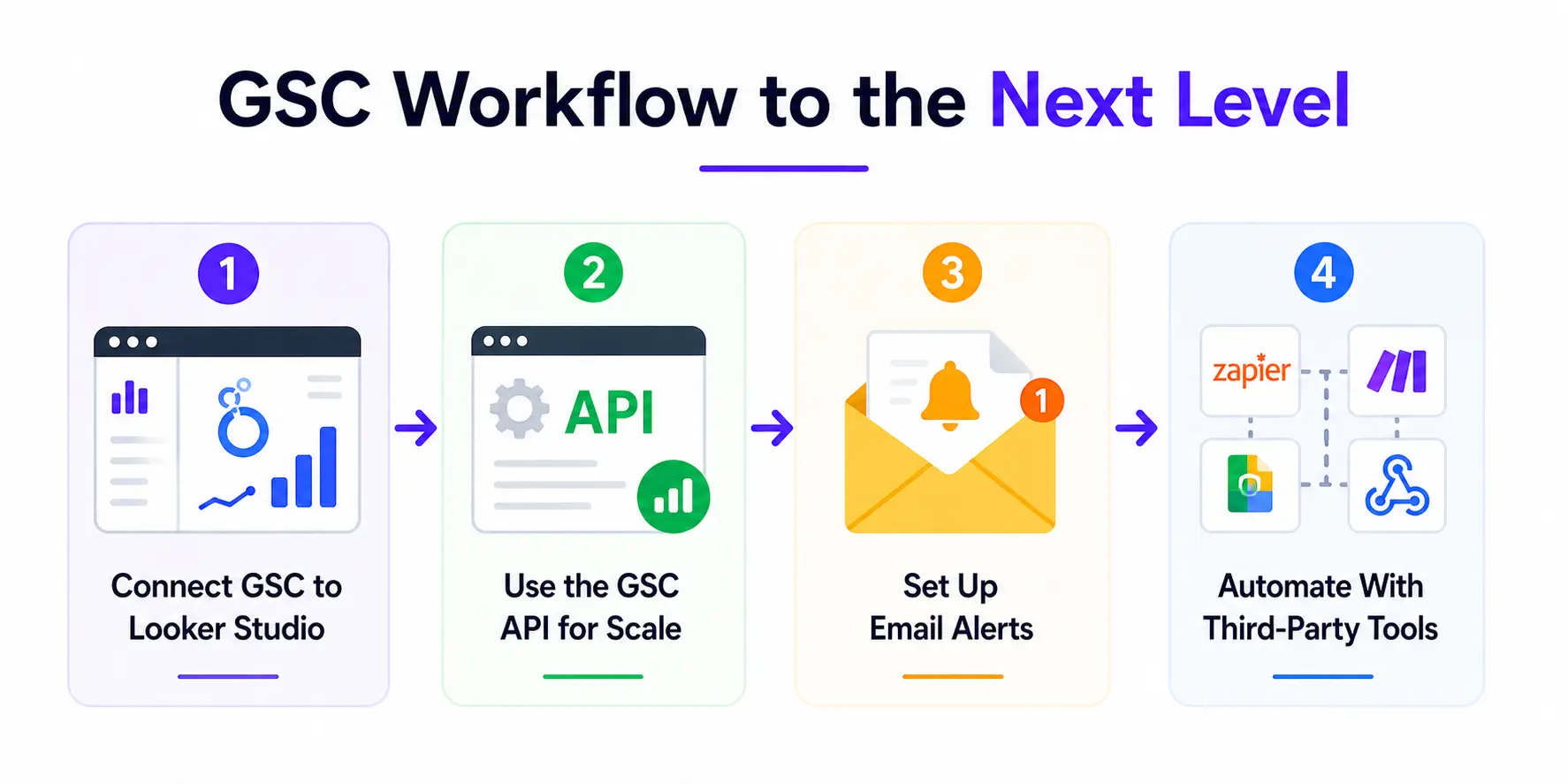
Once you’re comfortable with the basics, there are a few ways to get even more out of GSC without spending a single dollar.
Connect GSC to Looker Studio
Google’s free Looker Studio (formerly Data Studio) lets you pull your GSC data into custom dashboards. You can build reports that show exactly what you care about no manual filtering required every time you log in. Great for teams and agencies who need to share performance data regularly.
Use the GSC API for Scale
If you manage multiple sites or need to analyze data in bulk, the Google Search Console API lets you pull queries, impressions, clicks, positions, and sitemap data programmatically. You can feed this into Python scripts, spreadsheets, or custom reporting tools. It’s more technical, but it removes the manual work entirely.
Set Up Email Alerts
GSC automatically sends email alerts for critical issues manual actions, security problems, and significant drops. Make sure the email on your Google account is one you actually check. You don’t want to find out about a penalty three weeks later because the alert landed in a tab you never open.
Automate With Third-Party Tools
Platforms like n8n and Make (formerly Integromat) let you build automated workflows around GSC data. For example: automatically pull weekly performance reports into a Google Sheet, or get a Slack notification any time a page drops below position 10. These tools don’t require coding knowledge and can save hours of manual reporting each month.
SEO Optimization Checklist for This Article
| SEO Element | Status / Recommendation |
| Focus Keyword in Title | Google Search Console Workflow: A Complete Guide (2026) |
| Focus Keyword in Meta Desc | Included in first 20 words of meta description |
| Focus Keyword in Intro | Used naturally within first 100 words |
| H1 / H2 Usage | Focus keyword in H1; secondary keywords in H2s |
| Word Count | Aim for 2,500 – 3,500 words to compete with top results |
| Internal Links | Link to related SEO content on your site |
| External Links | Link to Google’s official GSC documentation |
| Images & Alt Text | Add annotated GSC screenshots with descriptive alt text |
| Schema Markup | Add HowTo or Article schema to help with rich snippets |
| Table of Contents | Add a jump-link TOC near the top for UX and SEO |
| FAQ Section | Include 3-5 questions targeting featured snippet positions |
Frequently Asked Questions
What is a Google Search Console workflow?
A Google Search Console workflow is a repeatable, structured process for reviewing GSC reports on a regular schedule. Instead of opening the tool randomly, you follow a defined sequence checking performance data, indexing status, Core Web Vitals, links, and security issues so nothing important slips through the cracks.
How often should I check Google Search Console?
A good rule of thumb: do a quick 5-10 minute check weekly for critical issues (manual actions, security alerts, indexing drops), and a deeper 30-60 minute monthly review of performance trends, coverage errors, and CWV. You can also set up email alerts so GSC notifies you about serious problems automatically.
What’s the difference between Google Search Console and Google Analytics?
GSC covers everything that happens before a user visits your site keyword rankings, impressions, CTR, crawl and index health. Google Analytics covers what happens after a visitor lands on your site sessions, behavior, conversions. Both are essential, and linking them gives you the full picture.
How do I fix indexing issues in Google Search Console?
Go to Indexing > Pages and review the ‘Not Indexed’ section. Click on each exclusion reason to see which URLs are affected. Common fixes include removing accidental noindex tags, fixing robots.txt blocks, improving thin content, and resolving redirect errors. After fixing, use the URL Inspection Tool to request indexing.
Can beginners use Google Search Console without coding knowledge?
Absolutely. The core Google Search Console workflow checking the Performance report, reviewing indexing status, monitoring Core Web Vitals, and using the URL Inspection Tool requires zero coding. It does take some time to understand what the data means, but this guide gives you the foundation to start making informed decisions from day one.
Conclusion
A solid Google Search Console workflow isn’t about spending hours in the tool every day. It’s about showing up consistently, knowing which reports to look at, and turning data into action.
The sites that grow steadily in organic search aren’t always the ones with the biggest budgets or the most content. They’re the ones where someone is paying attention catching issues early, spotting opportunities before competitors do, and making small, consistent improvements that compound over time.
Pick one section from this guide and start there. You don’t have to overhaul everything at once. Check the Performance report. Look at your excluded pages. Run the URL Inspection tool on your last published post. Each small step adds up.
GSC gives you first-party data straight from Google. That’s something no third-party tool can replicate. Use it wisely, and it will keep paying you back.