A good song can tell a story even without visuals. Its rhythm, lyrics, instruments, and emotional changes give listeners an experience that can be translated into a compelling music video. However, turning an audio track into a visual production traditionally requires planning scenes, arranging shoots, finding suitable footage, and spending hours editing everything together.
AI is changing how musicians and creators approach this process. Instead of recording every scene themselves, they can describe the visuals they imagine and use AI to generate scenes that complement their music. They can also combine existing performance recordings, photographs, and other footage to create a more personal video.
The process involves more than simply placing generated clips over a song. The visuals need to reflect the music’s mood, follow its progression, and create a consistent viewing experience. Understanding how to connect these elements is what makes the difference between a collection of AI-generated clips and a complete music video.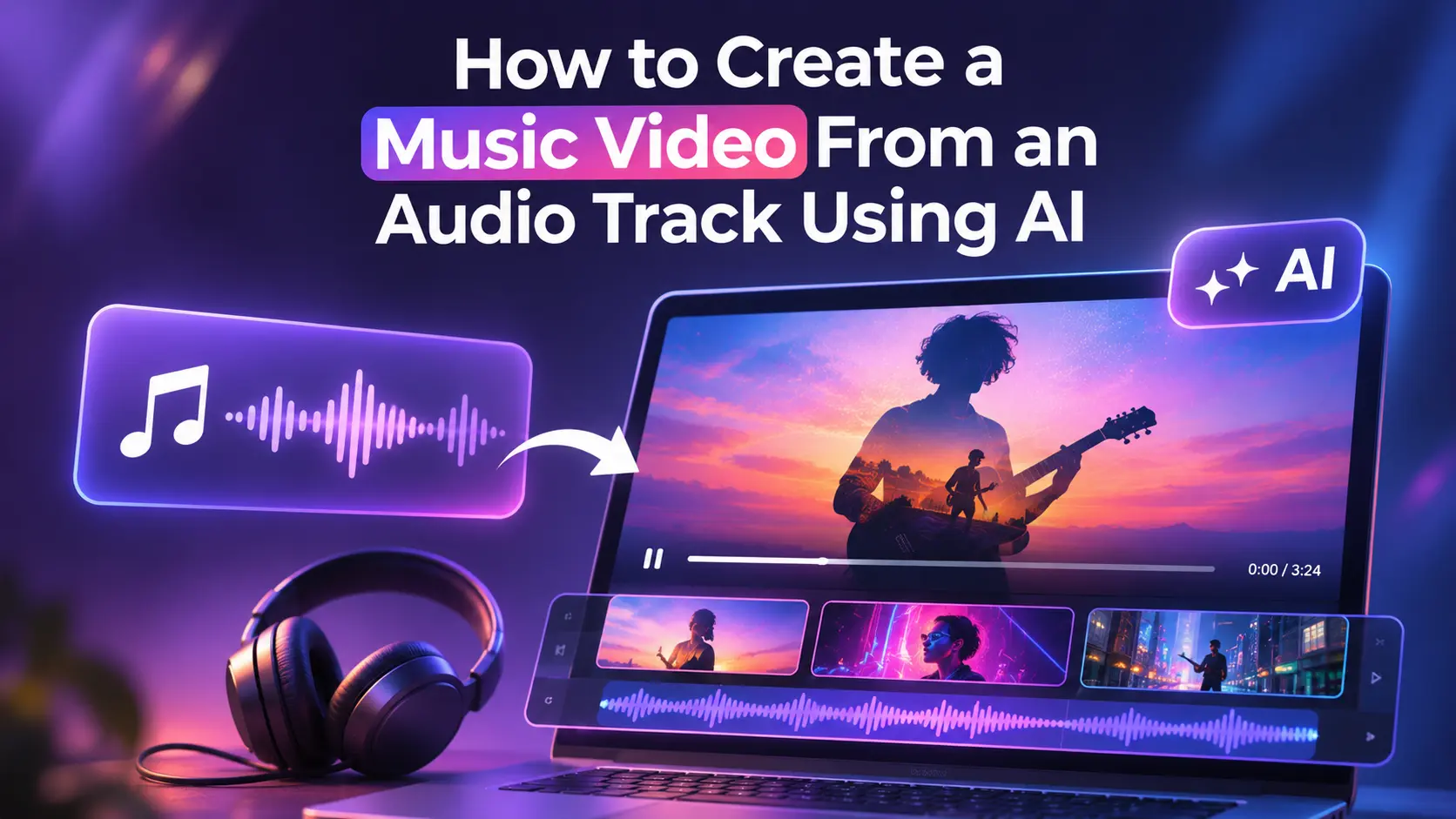
Start With the Music, Not the Visuals
Before generating anything, understand the audio track you want to turn into a video. The music should guide the visual direction, including the atmosphere, pacing, locations, and types of scenes.
Listen to the complete track and identify its main sections. Notice where the introduction ends, when the vocals begin, how the chorus changes the energy, and whether the instrumental sections create opportunities for different visuals.
For example, a slow acoustic song might suit longer cinematic shots, natural landscapes, and softer lighting. An energetic electronic track may work better with quick visual changes, vibrant environments, and dynamic performance scenes.
You should also decide what kind of music video you want to create. Some creators prefer a narrative video that follows a story, while others want performance footage, abstract visuals, or a combination of different styles.
Having this direction before generating scenes helps prevent the final video from looking visually disconnected.
Develop a Visual Concept That Matches the Song
Once you understand the audio, translate its mood and theme into a visual concept.
Think about the world in which the music video takes place. It could be a city at night, an open landscape, a concert stage, or an imagined environment that reflects the song’s emotions.
A visual concept does not need to be complicated. Even a simple idea can provide enough direction for generating multiple scenes.
For example, a song about personal growth could follow a character moving from an isolated environment into brighter, more open surroundings. A romantic track might use recurring locations, close-up shots, and warm lighting to create continuity.
A storyboard can help organize these ideas into individual shots. It gives you a reference for the opening, verses, chorus, instrumental sections, and ending. This also makes it easier to maintain a consistent visual style when generating scenes separately.
Turn Your Audio Track Into Visual Scenes With AI
Once the concept is ready, you can start creating the actual footage.
AI video generation allows creators to describe scenes using text prompts and generate visual clips without recording every shot. You can specify the environment, lighting, camera movement, characters, and overall atmosphere.
For example, a music video about loneliness could include a person walking through an empty city, looking out of a train window, or standing under streetlights during rainfall.
You can generate different scenes for different parts of the song while keeping the same visual direction. If you already have performance footage or photographs, these can also be combined with generated material.
An AI music video maker can make this process easier by allowing creators to enter a prompt, provide their music and visual direction, and have AI agents generate scenes, visuals, music, voiceovers, subtitles, and effects. With invideo’s music video maker, creators can also upload their own performance footage and images, combine them with generated scenes, and fine-tune the sequence on an editable timeline.
The platform allows users to choose the visual look through locations, lighting, and references, making it possible to create performance-based videos or visual stories around an existing song.
Make the Visuals Follow the Rhythm and Structure of the Song
Generating scenes is only part of the process. The next challenge is arranging them so that the video feels connected to the music.
A common mistake is using the same shot duration throughout the entire track. Music naturally changes in energy, and the visuals should reflect those changes.
For example, a quiet verse may benefit from a longer shot that allows viewers to focus on the atmosphere. When the chorus begins, you can introduce more frequent visual changes, performance shots, or additional scenes to match the increased energy.
Instrumental sections can provide opportunities for visual transitions, while the final section may benefit from returning to an image or location introduced earlier in the video.
You do not need every cut to match a musical beat. The goal is to make shot changes feel intentional and appropriate for the song. Adjusting individual clip durations on an editable timeline gives you greater control over this relationship.
Combine Generated Footage With Your Own Creative Assets
AI-generated scenes can provide visual variety, but personal footage often gives a music video a stronger identity.
Musicians can include recordings of themselves performing, behind-the-scenes footage, concert clips, photographs, and other existing assets. These elements help connect the video to the artist rather than making it feel like a generic AI production.
For example, an independent musician could combine generated cinematic environments with real performance footage. The generated scenes establish the atmosphere, while the original recordings give viewers a direct connection to the artist.
This combination also gives creators more flexibility. They do not have to generate every shot, and they can decide which parts of the song deserve original footage and which can be represented through AI-generated visuals.
Refine the Video Through Timeline Editing
After the scenes have been generated and arranged, the next stage is refining the complete video.
This involves checking shot durations, removing visuals that do not support the song, adjusting transitions, and making sure the sequence develops naturally.
A timeline-based editing environment is particularly useful because it allows creators to see how different scenes, audio, and effects fit together. For example, invideo Editor provides an editable timeline where creators can adjust individual shots, change their order, refine pacing, and make manual changes to the generated sequence.
This is important because AI-generated scenes may not always match the intended timing or visual direction perfectly. Being able to review and change individual elements helps creators retain control over the final music video.
You can also refine the opening and ending, add the song title or artist information, and make other adjustments needed for the intended release.
Keep the Original Music at the Centre
When creating a music video from an existing audio track, the song should remain the main audio element.
Additional sound effects or ambient recordings can support particular scenes, but they should not compete with the original music. A performance shot, for example, may include the sound of the environment, while a cinematic transition may benefit from a subtle effect.
The music video maker on invideo allows creators to use their own track as the main audio and decide where other sounds should appear. It also provides the option to lower unwanted audio from footage so that performance recordings, ambient sounds, or effects enter only when needed.
This helps maintain the intended listening experience while allowing supporting audio to contribute to the visuals.
Prepare Different Versions for Music Promotion
A full-length music video is only one way to present a song. Creators can also prepare shorter versions for social media promotion.
A chorus, an interesting instrumental section, or a memorable visual sequence can become a short teaser. These clips can introduce the song to audiences before its full release or help maintain interest after publication.
For example, a musician might create a vertical teaser for Instagram Reels, a YouTube Short featuring the chorus, and a longer landscape version for the complete music video.
The same footage can be rearranged into different sequences, provided the important visuals remain clear and the music is presented appropriately for each format.
Common Mistakes to Avoid When Creating AI Music Videos
One common mistake is generating visuals without a consistent concept. Although individual scenes may look impressive, they can feel disconnected when placed together. Establishing a visual direction before generation helps maintain continuity.
Another mistake is ignoring the structure of the song. Using identical shot durations throughout a track can make the video feel repetitive. Visual pacing should reflect the changes in energy and emotion.
Creators should also avoid relying entirely on effects and transitions. Excessive visual movement can distract from the music rather than support it. Sometimes a simple, well-timed shot creates a stronger impression.
Finally, always review the complete video before publishing. Check whether the visuals match the intended mood, whether transitions feel natural, and whether the original audio remains clear.
Final Thoughts
Creating a music video from an audio track using AI is becoming more accessible to independent musicians, content creators, and production teams. AI can help translate creative ideas into scenes, combine generated footage with existing assets, and arrange visuals around a song’s structure.
However, the quality of the final result still depends on creative direction. Understanding the music, choosing a consistent visual concept, and refining the sequence are all important parts of production.
By combining AI-generated scenes with thoughtful timeline editing, creators can turn an existing audio track into a visual experience that reflects the music rather than simply accompanying it.
Frequently Asked Questions
1. Can AI create a music video from an existing audio track?
Yes. AI music video platforms allow creators to upload an existing track, describe the visual direction, and generate or arrange scenes around the music. The resulting sequence can then be reviewed and refined.
2. Do I need to record footage to create an AI music video?
No. You can describe the scenes you want, including their setting, lighting, and visual style, and generate footage using AI. You can also combine generated scenes with your own photographs and performance recordings.
3. Can I use my own song in an AI music video maker?
Yes. invideo’s music video maker supports uploading your own audio track and building the video around it. You can also add your own performance footage and images.
4. How do I make AI-generated scenes match the rhythm of a song?
Start by identifying the song’s verses, chorus, instrumental sections, and major changes in energy. Arrange visuals around these sections, then adjust individual shot lengths on the timeline. Review the complete video against the music rather than assuming every cut will automatically match the beat.
5. Can I create a music video without filming a performance?
Yes. AI-generated scenes can create the visual foundation of a music video without requiring a recorded performance. You can use imagined environments, characters, landscapes, and cinematic sequences to represent the song.
6. Can I create short promotional clips from the same music video?
Yes. You can select a section of the song, choose the shots you want to retain, and create a shorter sequence. These versions can be prepared for social media promotion and music releases.
7. Can I edit an AI-generated music video after it is created?
Yes. invideo’s music video maker keeps the generated sequence editable on a timeline. You can adjust shot lengths, change the order of clips, review transitions, and refine the video before exporting.