Juggling a dozen client accounts on a stack of physical phones is slow, messy and easy to get wrong. The best Android cloud phones for managing multiple social media accounts fix part of that problem: each account lives in its own remote Android device, and your team opens it from a browser or desktop app.
Anyone who runs agency-style workflows knows the real pain. It is not posting. It is logins, handovers, who has which device, and what happens when a phone dies on a Friday. This guide compares eight providers on those practical points, then walks through costs, safety and setup.
One honest note before we start. No cloud phone guarantees that your accounts stay safe or avoid platform enforcement. Instagram, TikTok and Meta set their own rules, and you must follow them.
How this guide was put together. I compared published specs, pricing pages and independent reviews as of November 2026. I did not run hands-on tests on every product. Several price figures come from third-party reviews, and a few of those reviewers sell competing tools, so treat numbers as approximate and confirm them on each provider’s site before buying. I have no affiliate links in this draft.
8 Best Android Cloud Phones for Managing Multiple Social Media Accounts
1. GeeLark: Best for Social Media Workflows
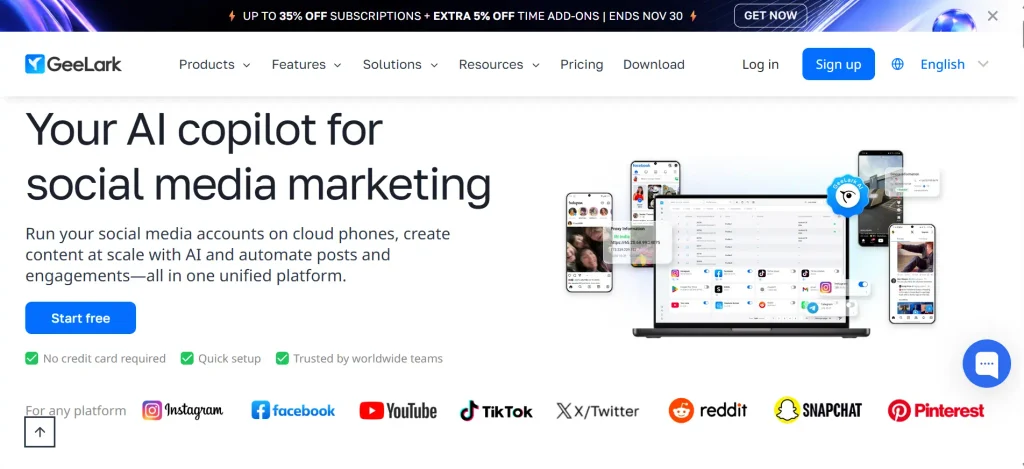
Key features. GeeLark describes its product as remote Android devices with a unique fingerprint on each one. It also offers automation templates and team access.
Pricing. GeeLark’s own release notes list plans from $19 a month with 20 cloud phone profiles, and extra seats at $9 per member. Running a phone costs $0.007 per minute, capped at $1 per phone per day. Some older reviews quote different plan names and seat rules, so check the live page.
Pros and cons. It is built for mobile multi-account work, which shows in the workflow tools. The two-part bill (plan plus minutes) takes a little planning.
Who should choose it? Agencies and creators who want a social-first tool and are happy to track usage.
2. DuoPlus: Best for Large Multi-Device Operations
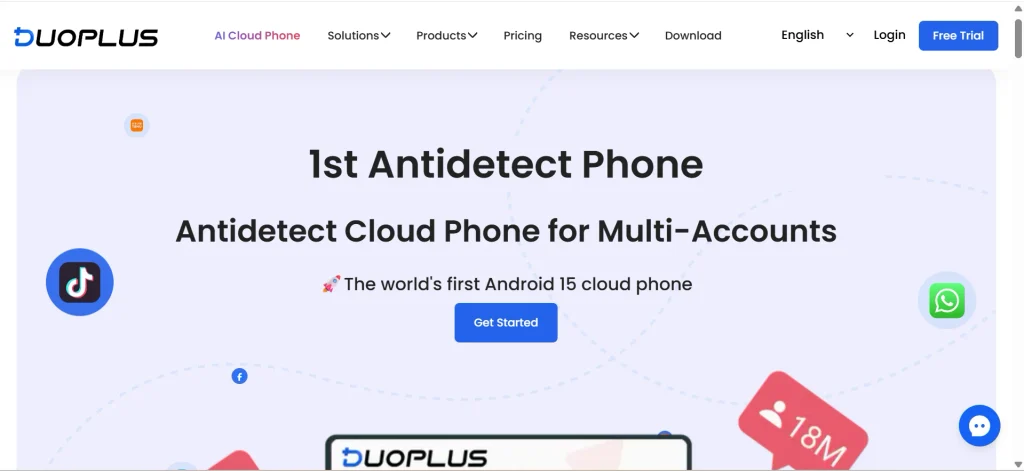
Key features. DuoPlus runs ARM-based cloud phones and says you can scale from one device to 500 in the same interface. It also sells a separate phone farm product for bigger setups.
Pricing. Listings show a Cloud Mobile device fee from about $1.40 a month, temporary computing power from about $0.15, and fixed computing power from about $19.90. New users get a short free trial.
Pros and cons. The low device fee suits teams with many phones. The mix of device fees and runtime fees means you need a simple spreadsheet to predict the bill.
Who should choose it? Teams running a large number of devices who want to control cost per phone.
3. BitCloudPhone: Best for Technical Multi-Account Workflows
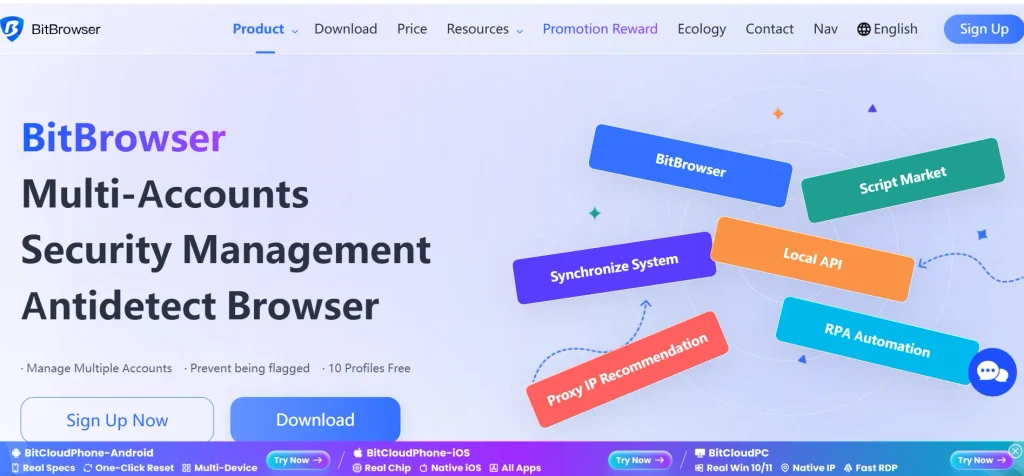
Key features. BitCloudPhone lives inside the BitBrowser app. BitBrowser says it offers Android 15 images and opens ADB and root access, which helps developers who want custom scripts. BitBrowser also claims it passed Google certification checks. That is a vendor claim, so treat it as unverified.
Pricing. One independent reviewer found a one-time device fee plus usage charges, and called the pricing hard to follow. Confirm the current numbers in the app.
Pros and cons. Good control for technical users. The same reviewer found the synchronizer and automation tools needed more polish.
Who should choose it? Technical teams comfortable with ADB who value customization over simplicity.
4. VMOS Cloud: Best for Flexible Android Environments
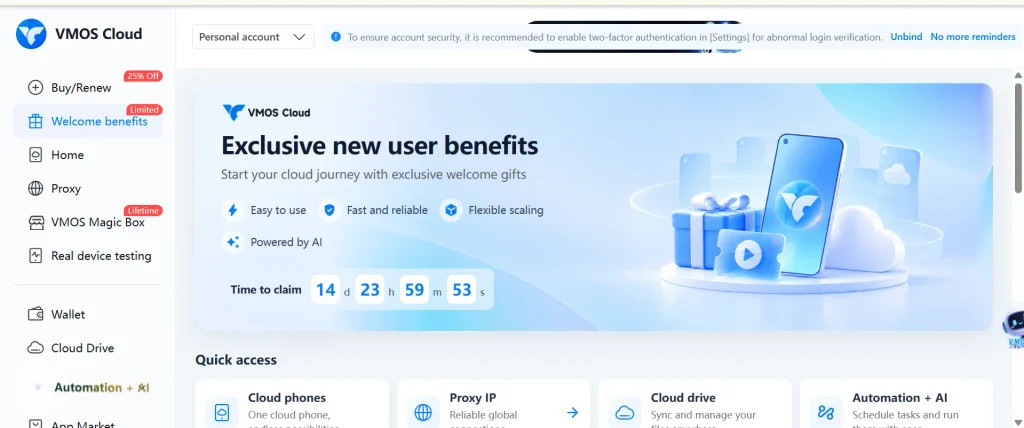
Key features. VMOS Cloud officially supports Android versions up to Android 15 and offers root access. It also lists automation panels for TikTok and Facebook, plus extras such as cloud storage.
Pricing. There is no permanent free plan. Pricing depends on device model, specs and rental length. Reviewers describe the pricing page as cluttered, and proxies cost extra.
Pros and cons. Strong flexibility on Android version and device spec. Beginners may find the plan options confusing.
Who should choose it? Power users who need a specific Android version or deeper device control.
5. Redfinger: Best for Always-On Android Access
Key features. Redfinger is built around persistent, always-on operation, so apps and scripts keep running without your own computer. Its app lists servers in the United States, Taiwan and Singapore.
Pricing. It sells four tiers: VIP, KVIP, SVIP and XVIP, with higher tiers giving more power. Prices vary by region and promotion.
Pros and cons. Reliable for staying online. It grew up around gaming, and one reviewer found the location setting did not change the device’s IP as expected. Test that before you commit.
Who should choose it? Users who mainly need a phone that stays logged in around the clock.
6. LDCloud: Best for General Cloud Android Usage
Key features. LDCloud offers multi-instance cloud phones. Its own guide says it is a multi-use tool for gaming and non-gaming work, including marketing.
Pricing. It uses monthly device plans. I could not confirm current prices from a primary source, so check its site.
Pros and cons. Simple, general-purpose access. I found little evidence of social-media-specific features such as team permissions.
Who should choose it. Individual users with light needs who want a basic cloud Android device.
7. MoreLogin: Best for Browser and Mobile Account Workflows
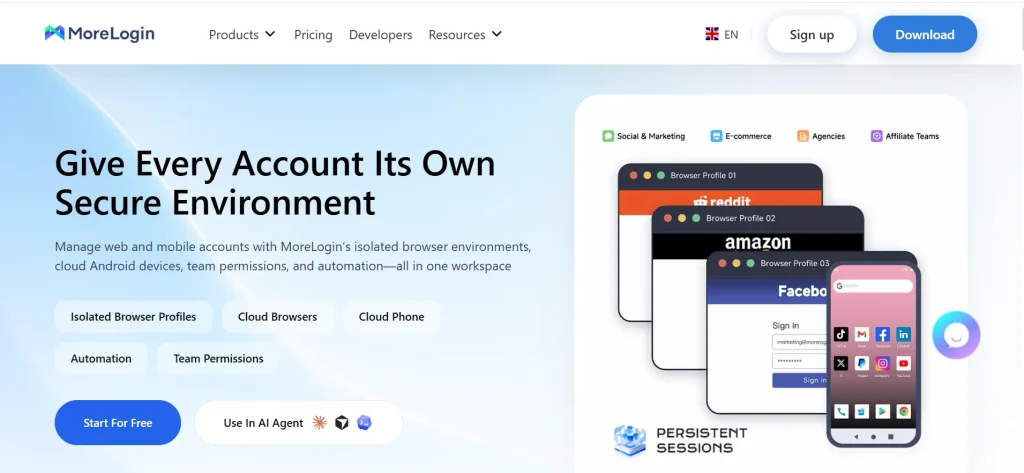
Key features. MoreLogin pairs browser profiles with full Android cloud phones in one workspace. It also supports synchronized actions, API access and ADB workflows.
Pricing. One comparison lists cloud phones at $0.006 a minute with a daily cap, or about $23 to $25 per 30 days. That comes from a secondary source, so verify it.
Pros and cons. Flexible billing and a daily cap help control cost. Cloud phone line items on invoices can be unclear, so check your first bill.
Who should choose it? Small teams that want browser and phone profiles together at a moderate price.
Best Android Cloud Phones for Managing Multiple Social Media Accounts at a Glance
GeeLark, DuoPlus, Multilogin and MoreLogin are the most social-media-focused options here. VMOS Cloud and BitCloudPhone suit technical users. Redfinger and LDCloud lean toward gaming and always-on use.
| Provider | Best for | Pricing model (approximate) | Main limitation |
| GeeLark | Social media workflows | Subscription from about $19/month for 20 profiles, plus $0.007 per running minute with a $1 daily cap per phone | Two-part pricing is easy to misread |
| DuoPlus | Large device counts | Device fee from about $1.40 per month, plus runtime or fixed-power options | Runtime fees need tracking |
| BitCloudPhone | Technical teams that want ADB access | One-time device fee plus usage charges | Pricing is less transparent |
| Multilogin | Browser and phone in one dashboard | Plans bundle proxy traffic and mobile minutes; extra minutes sold in packages | Higher entry cost |
| VMOS Cloud | Flexible Android versions | Rental plans by device spec and duration | Cluttered pricing page |
| Redfinger | Always-on Android access | Four tiers: VIP, KVIP, SVIP and XVIP | Built around gaming first |
| LDCloud | General cloud Android use | Monthly device plans; confirm current prices | Little social-media-specific evidence |
| MoreLogin | Browser profiles plus cloud phones | Per-minute with a daily cap, or per-30-day rental | Cloud phone billing can be unclear |
Quick Recommendations
- Best overall for social media management: GeeLark, because it was built around multi-account mobile work.
- Best for large device counts: DuoPlus, which scales from one device up to hundreds in one interface.
- Best for browser and mobile workflows: Multilogin or MoreLogin.
- Best for technical customization: BitCloudPhone or VMOS Cloud.
- Best for always-on Android access: Redfinger.
What Is an Android Cloud Phone?
An Android cloud phone is a remotely hosted Android device that you control over the internet. You install apps, log in and use it like a normal phone, but the hardware sits in a data center instead of your pocket.
1. How Android Cloud Phones Work
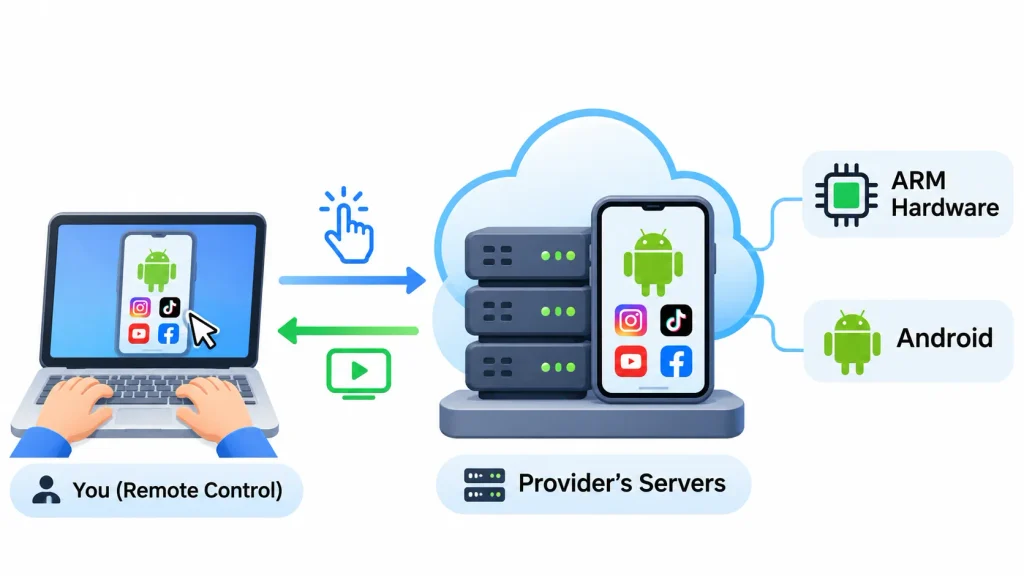
Think of it as renting a phone and holding the remote control. The provider runs Android on its servers, often on ARM-based hardware, which is the same chip family most real phones use. Your screen shows a live video stream of that device, and your taps travel back over the internet.
That is different from a classic emulator on your PC. An emulator runs on your own computer, so it uses your CPU and RAM. A cloud phone runs somewhere else, so your laptop only has to display the stream. Under the hood, providers rely on virtualization or dedicated ARM servers to split one machine into many devices.
2. How Cloud Phones Store Apps and Account Data
Each cloud phone has its own storage, installed apps and settings. When you restart it, your apps and logins normally stay in place, much like a real phone. How long data is kept after a plan expires differs by provider, so check the retention policy before you rely on it.
Many providers also give each device its own device fingerprint, such as an Android ID or model name. That helps keep environments separate. It does not make them invisible to a platform.
3. Why Social Media Managers Use Cloud Phones
- Separate workspaces. One device per client or account keeps logins from mixing.
- Remote access. You can open any device from a laptop, wherever you are.
- Easier handovers. Teammates get access to a device instead of passwords passed around in chat.
- Less hardware. No chargers, cracked screens or a drawer of old phones.
- Always-on sessions. Apps keep running when your own computer is off.
Which Android Cloud Phone Is Best for Each Social Media Platform?
There is no single winner for every app. Each platform behaves differently on a remote device, so the right pick depends on what you do there. Use the free trials or short plans to test your own app first.
1. Best Android Cloud Phones for Instagram
Check three things: the app installs and logs in cleanly, uploads of photos and Reels finish, and each client gets a separate device. GeeLark, DuoPlus and Multilogin are the most natural fits because they target multi-account work. Keep one client per device so a login problem never spreads.
2. Best Android Cloud Phones for TikTok
TikTok is video-heavy, so upload speed and screen smoothness matter more than anywhere else. VMOS Cloud and GeeLark both advertise TikTok-focused tools. Regional availability of the app also varies, so test with the country you actually need.
3. Best Android Cloud Phones for Facebook
For client Pages, many tasks can be done in a browser through Meta Business Suite. A cloud phone helps when you need the mobile app itself, such as Messenger or app-only features. Multilogin and MoreLogin suit this well because they pair browser profiles with phone profiles.
4. Best Android Cloud Phones for WhatsApp and Telegram
Messaging apps care about steady sessions. A phone that stays online helps you keep chats active, which favors always-on options such as Redfinger. For business messaging, give each number its own device and a clear owner.
5. Best Android Cloud Phones for YouTube and Other Platforms
YouTube Studio works well in a browser, so you may not need a phone at all. You can also explore YouTube automation tools to simplify repetitive content management and publishing tasks.Use a cloud phone only when you need an Android-only app, such as a niche social app or a mobile editing tool. Pick based on app compatibility and Android version.
How to Choose the Best Android Cloud Phone for Your Needs
Start with your workflow, not the price tag. A cheap device that cannot upload video is no bargain. Work through these nine checks in order.
- Android version and app compatibility. Install your must-have apps during the trial. Providers range from older Android builds to Android 15.
- Performance. Ask about RAM, CPU and storage. Video apps need more headroom than messaging apps.
- Multi-device management. Look for bulk actions, tags and groups once you pass five or six devices.
- Isolation and session persistence. Each device should keep its own apps and logins after a restart.
- Proxy and network setup. Check that you can set a proxy per device. Common types include HTTP, HTTPS and SOCKS5. Some plans bundle proxies, others do not.
- Automation and API access. Useful for scheduling and handovers. Look for ADB support or an API if your team writes scripts.
- Team permissions. You want roles, so an intern can open a device without seeing every client.
- Pricing and usage limits. Add up the plan, running minutes, seats and proxies, not just the headline price.
- Support and data recovery. Ask what happens to your data if a plan lapses or a device fails.
Android Cloud Phones vs Physical Phones vs Android Emulators
Cloud phones are usually easier to share and scale than physical phones. Emulators are cheapest if you already own a powerful computer. Physical phones give you the most “real” environment but cost the most to maintain.
| Feature | Cloud phone | Physical phone | Android emulator |
| Remote access | Built in | Needs extra setup | Depends on setup |
| Hardware upkeep | Provider handles it | You handle it | Your computer handles it |
| Multiple environments | Plan dependent | One device each | Usually supported |
| Internet needed | Yes, always | Depends on the task | Depends on the task |
| Upfront cost | Usually lower | Highest | Needs a capable computer |
| Team sharing | Platform dependent | Hard to share | Tool dependent |
Cloud Phones vs Physical Smartphones
A physical phone can still win when you already own the devices and have staff to look after them. Cloud phones win on remote teams and quick scaling. You also lose the camera, microphone and touch hardware, so tasks that depend on them are harder.
Cloud Phones vs Android Emulators
An emulator runs on your own machine, so it uses your CPU and RAM and stops when your computer does. A cloud phone runs on the provider’s servers and can stay online. Emulators are free or cheap, but they are often easier for apps to spot, and they strain a laptop once you run several.
Which Option Is Best for Social Media Agencies?
For most agencies past a handful of accounts, cloud phones are the practical middle ground. Keep a couple of real phones for tasks that need a camera or SMS verification, and use cloud phones for everything else.
How Much Does It Cost to Manage Multiple Social Media Accounts With Cloud Phones?
For 10 phones used about two hours a day, expect roughly $270 a month on a minute-based plan like GeeLark’s, before proxies. The sticker price per device is rarely the final bill, so it helps to model your own usage.
The numbers below are illustrative estimates, not quotes. They use GeeLark’s published rate of $0.007 per running minute, a $1 daily cap per phone, and a $19 monthly plan that covers 20 profiles. They ignore free included minutes, extra seats and proxies, all of which change the total. At that rate, a phone hits the $1 cap after about 142 minutes a day.
| Setup | 2 hours a day per phone | Always on (capped $1 a day) |
| 5 phones | about $145 a month | about $169 a month |
| 10 phones | about $271 a month | about $319 a month |
| 20 phones | about $523 a month | about $619 a month |
Here is the maths for 10 phones at two hours a day. Two hours is 120 minutes. At $0.007 a minute, that is $0.84 a day per phone, or about $25.20 over 30 days. Ten phones cost $252, plus the $19 plan, which gives $271.
For comparison, DuoPlus lists a device fee from about $1.40 a month. That is about $7, $14 and $28 for 5, 10 and 20 devices, before any runtime fees. It looks cheaper at first, but you still need to price the running time you will use.
Additional Costs: Proxies, Storage and Running Time
- Proxies. Many accounts need a stable IP per device. Residential or mobile proxies are often billed per gigabyte or per IP, and they can match or beat the phone cost.
- Seats. Some plans charge for extra team members.
- Storage and add-ons. Extra storage, AI tools and automation may cost more.
- Idle time. A phone left running burns minutes even if no one is using it.
How to Reduce Cloud Phone Operating Costs
- Shut phones down when you are not using them, if your plan bills by the minute.
- Use monthly or fixed plans for devices that must stay online all day.
- Review your invoice after the first month and compare it with your estimate.
- Retire devices for finished client projects.
- Ask about volume discounts once you pass 20 devices.
Are Android Cloud Phones Safe for Managing Multiple Social Media Accounts?
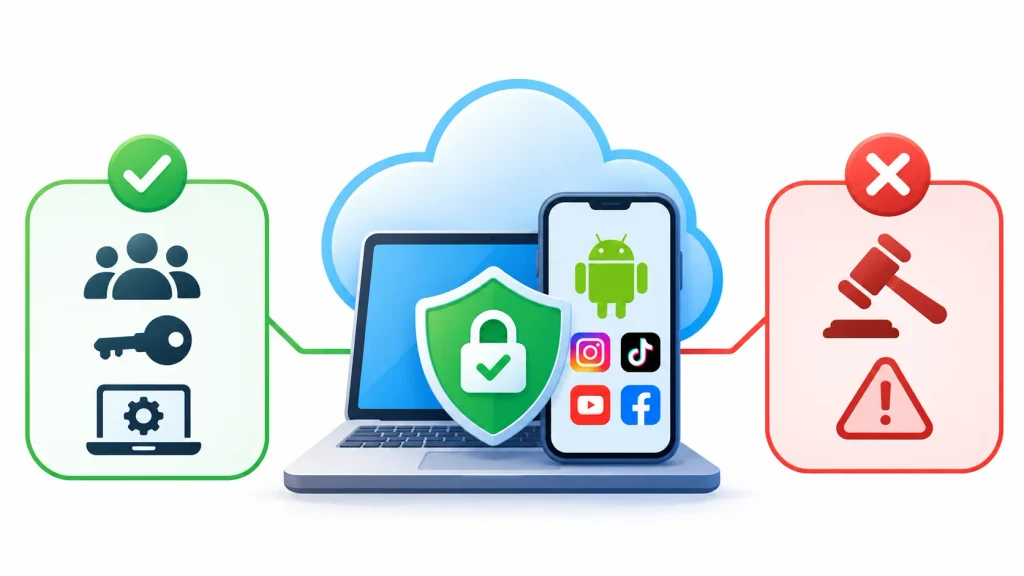
Cloud phones are safe to use when you treat them like any shared work tool, but they do not protect an account from platform rules. Most account problems come from behavior and weak access control, not from the device type.
1. Can Social Media Platforms Detect Cloud Phones?
Platforms look at many signals, and none of them publish the full list. Providers claim their devices look like real phones, but those are marketing claims, and detection methods change. Assume a platform may be able to tell, and never build a business on the idea that it cannot.
2. Do Cloud Phones Prevent Account Restrictions?
No. Separate devices reduce one kind of risk, which is accounts sharing the same device signals. They do not stop restrictions caused by spammy behavior, mass automation or breaking platform terms. Read the rules on the Instagram Help Center and the TikTok Community Guidelines before you automate anything.
3. Understanding Device Fingerprints and Network Signals
A device fingerprint is a bundle of small details, like the Android ID, model and screen size, that help identify a device. Your network adds more signals, such as the IP address and time zone. Keep these consistent for each account. An account that logs in from a new country every day looks odd, whatever phone it uses.
4. Common Security Risks
- Unauthorized access to a shared device
- Weak or reused passwords
- Credentials shared in chat or email
- Untrusted apps or APKs installed on a device
- Data exposure if a provider is breached
- Team members with more access than they need
5. Best Practices for Secure Account Management
- Turn on two-factor authentication for every account and your provider login.
- Store passwords in a password manager, not a spreadsheet.
- Give each person the least access they need.
- Install apps only from official sources.
- Keep recovery emails and phone numbers up to date and under company control.
- Follow each platform’s terms. If you are unsure, ask in a community such as socialmedia and then confirm with the platform’s own help pages.
How to Set Up an Android Cloud Phone for Social Media Management
Setup usually takes under an hour for the first device. Do one phone end to end before you create ten.
Step 1: Choose a Suitable Cloud Phone Provider
Pick from the shortlist above and start with a free trial or the cheapest plan.
Step 2: Create Your Android Cloud Device
Choose the Android version and region. Pick a region close to you for smoother streaming.
Step 3: Install Social Media Applications
Use the built-in app store or Google Play where available. Avoid random APK files.
Step 4: Configure Account Access Securely
Log in with your password manager, turn on two-factor authentication and save recovery details. Attach a proxy if your plan needs one.
Step 5: Organize Devices by Client or Account
Name each device clearly, for example “ClientA-Instagram”. Use tags or groups if the tool has them.
Step 6: Configure Team Permissions
Invite teammates and give each only the devices they need.
Step 7: Monitor Device Performance and Usage
Check running minutes and any lag each week. Shut down devices you do not use.
Common Android Cloud Phone Problems and How to Fix Them
| Problem | Likely cause | What to try |
| Slow performance or lag | Far-away server or weak connection | Pick a closer region, lower the stream quality, close extra apps |
| App will not install | Wrong Android version or blocked source | Try another Android version or the official store |
| Login verification loop | New device or network change | Use the same network, finish verification through the official app flow |
| Uploads fail | Large file or unstable connection | Compress the file, retry on a stronger connection |
| Device disconnects | Plan expired or session timeout | Check the plan status and reconnect |
| Surprise charges | Phones left running | Review usage and shut down idle devices |
| Team cannot open a device | Wrong permissions | Check the role and device assignment |
Cloud Phone Management Tips for Social Media Agencies
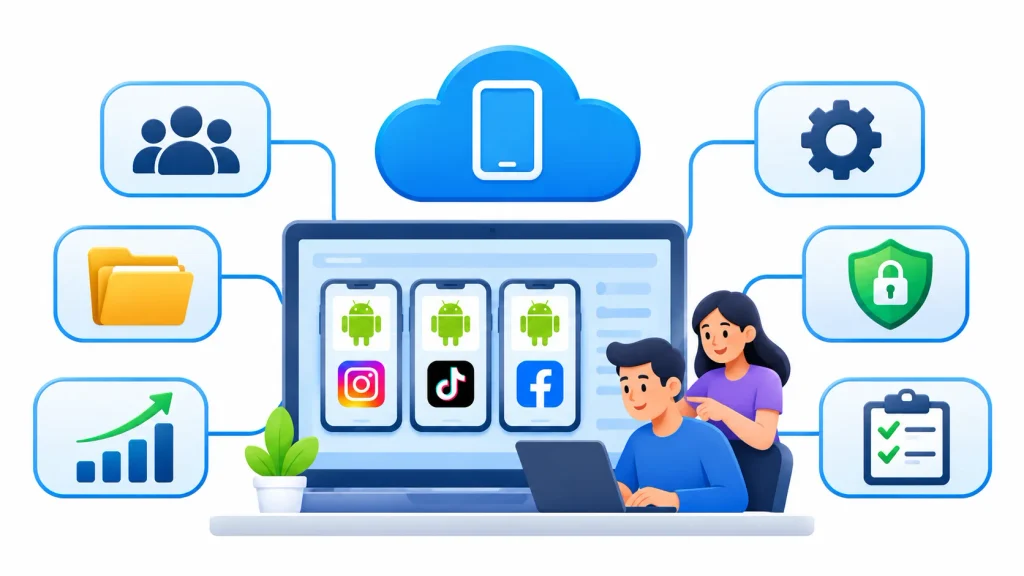
- Organize by client and campaign. One folder or tag per client keeps handovers painless. Regularly conducting a social media account audit also helps agencies identify inactive accounts, review performance, and maintain consistent account management.
- Write a short process. A one-page checklist for onboarding, posting and offboarding saves hours.
- Use role-based access. Give each person the least they need.
- Keep recovery details safe. Store them in a shared vault the agency owns.
- Watch usage and cost. A weekly five-minute check catches waste early. A performance marketing agency can also benefit from organized account management and efficient campaign workflows when handling multiple client campaigns.
- Keep a human in the loop. Review anything sensitive, such as replies, paid posts and account settings, before it goes out. Use automation for admin tasks like scheduling, not to fake engagement.
Frequently Asked Questions About Android Cloud Phones
What Is the Best Android Cloud Phone for Managing Multiple Social Media Accounts?
For most social media teams, GeeLark is a strong starting point because it is built for multi-account mobile work. DuoPlus suits large device counts, and Multilogin or MoreLogin suit teams that also need browser profiles. The best choice depends on your platforms, team size and budget.
Can I Manage Multiple Instagram Accounts With One Cloud Phone?
You can install the app and switch between accounts on one device, but a separate device per account or client keeps things cleaner. Instagram’s own rules still apply, so check its Help Center.
Are Android Cloud Phones Better Than Emulators?
Not always. Cloud phones are easier to share and can stay online without your computer. Emulators cost less if you already have a strong PC, and they work well for testing.
Can I Run Multiple TikTok Accounts on Cloud Phones?
Yes, many providers support it, and some advertise TikTok-specific tools. Test uploads and your region before you buy a long plan.
Are There Free Android Cloud Phone Services?
Some offer limited free tiers or trials. GeeLark and Multilogin list free plans with a couple of profiles or a small number of minutes, while VMOS Cloud has no permanent free plan. Free tiers are for testing, not daily work.
Do Cloud Phones Require Proxies?
Not technically, but many workflows use a proxy so each device has a steady IP. Some plans bundle proxy traffic, and others leave it to you.
Can Multiple Team Members Access One Cloud Phone?
Often yes. Many platforms offer team seats or sharing, though seat limits and prices differ. Use role-based access so people see only what they need.
Can Android Cloud Phones Run 24/7?
Most can stay online, and Redfinger is built around that idea. On minute-based plans, always-on use costs more, so compare it with a monthly plan.
How Much Does an Android Cloud Phone Cost?
Published entry prices range from about $1.40 a month per device on DuoPlus to about $19 a month for a GeeLark plan, plus running minutes. Your real cost depends on usage, seats and proxies.
Can Social Media Platforms Detect Cloud Phones?
Possibly. Platforms use many signals and do not publish them. Treat any “undetectable” claim with caution, and follow each platform’s terms.
Final Verdict
The best Android cloud phone for managing multiple social media accounts depends on your workflow, team size, and budget. Individual social media managers can start with a free tier or short trial from GeeLark or MoreLogin to explore their features before committing to a subscription.
Freelancers may also find these platforms suitable, but they should monitor running minutes to avoid unexpected costs. Small marketing agencies can choose GeeLark for social-first workflows or Multilogin if they need to manage both browser and mobile accounts.
For larger social media teams, DuoPlus can be a suitable option for scaling operations, provided they maintain a clear record of device usage and expenses.
Budget-conscious users can compare DuoPlus and MoreLogin by checking their actual runtime costs rather than relying only on advertised subscription prices.
Technical teams that require ADB support and Android version control can consider BitCloudPhone or VMOS Cloud, while teams managing browser and mobile workflows together may prefer Multilogin or MoreLogin.
Before making a long-term commitment, shortlist two providers and test each with a real client account for one week. Compare uptime, video upload success, device performance, and the final invoice. This practical evaluation will help you identify the most suitable cloud phone for your requirements and provide more reliable insights than choosing a provider based on rankings alone.