If you’ve typed “best AI tools for graphic design” into Google recently, you already know the problem: everyone has a “top 10” list, and half of them read like they were written by the same bot. I’ve spent the last few months actually using these platforms for real client work, social posts, posters, product ads, and a couple of logo projects and this guide is the result.
Short answer up front: there is no single best AI tool for graphic design. The right pick depends on what you’re making. Adobe Firefly is the safest choice if you need commercially licensed images inside Photoshop. Canva AI is the fastest way for a non-designer to produce a decent social post. Midjourney still makes the most striking images. Recraft is the only serious option if you need true vector output. The rest of this guide breaks down exactly when to reach for each one.
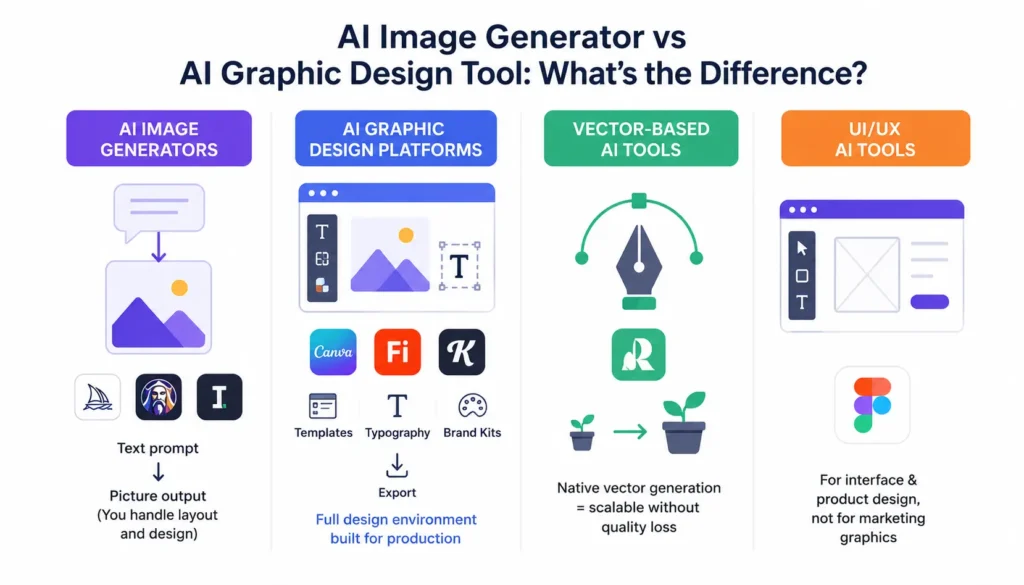
Before we get into the list, it’s worth drawing a line between two different things that both get called “AI design tools.” AI image generators (Midjourney, Ideogram, Leonardo) create pictures from text prompts they don’t understand layout, brand kits, or print specs. AI graphic-design platforms (Canva, Adobe Firefly, Kittl, Figma) wrap that image generation inside an actual design workflow, with templates, typography controls, and export options a working designer can use. Mixing the two up is the number one reason people end up disappointed with an AI tool.
I evaluated every tool here on the same criteria: usability, output quality, editing control, pricing, commercial-use terms, and how well it fits into a real workflow, not just how pretty its demo images look.
The 10 Best AI Tools for Graphic Design
- Adobe Firefly– Best for professional Adobe workflows
- Canva AI (Magic Studio)– Best for beginners and marketing graphics
- Midjourney– Best for creative concepts and visual exploration
- Ideogram – Best for typography and text in images
- Recraft – Best for AI vector graphics
- Kittl – Best for logos, typography, and print design
- Leonardo.Ai – Best for custom visual assets and concept art
- Figma AI – Best for UI and product design
- Clipdrop – Best for AI image editing and cleanup
- Designs.ai – Best for all-in-one creative production
Quick Comparison Table
| AI Tool | Best For | Free Plan | Starting Price* | Main Strength |
| Adobe Firefly | Professional Adobe workflows | Yes (25 credits/mo) | ~$9.99/mo | Commercially safe, IP-indemnified images |
| Canva AI | Beginners & marketing graphics | Yes | ~$15/mo | Full design workflow in one editor |
| Midjourney | Creative concepts & visual exploration | No | $10/mo | Best raw image quality |
| Ideogram | Typography & text in images | Yes | ~$15/mo | Most accurate in-image text rendering |
| Recraft | AI vector graphics | Yes (daily credits) | ~$10/mo | Native SVG output |
| Kittl | Logos, typography & print | Yes (one-time tokens) | ~$15–20/mo | Branding and print-ready templates |
| Leonardo.Ai | Custom visual assets | Yes (150 credits/day) | ~$10–12/mo | Style consistency & concept art |
| Figma AI | UI and product design | Yes | ~$16–20/mo per seat | Design systems & prototyping |
| Clipdrop | AI image editing & cleanup | Yes (limited) | Free / paid add-ons | Background removal & upscaling |
| Designs.ai | All-in-one creative production | Yes (limited) | ~$19/mo | Bundled logo, video, and image tools |
*Pricing changes often. Several tools restructured plans mid-2026, so treat these as a starting point and check each vendor’s pricing page before you subscribe.
What Are AI Graphic Design Tools?
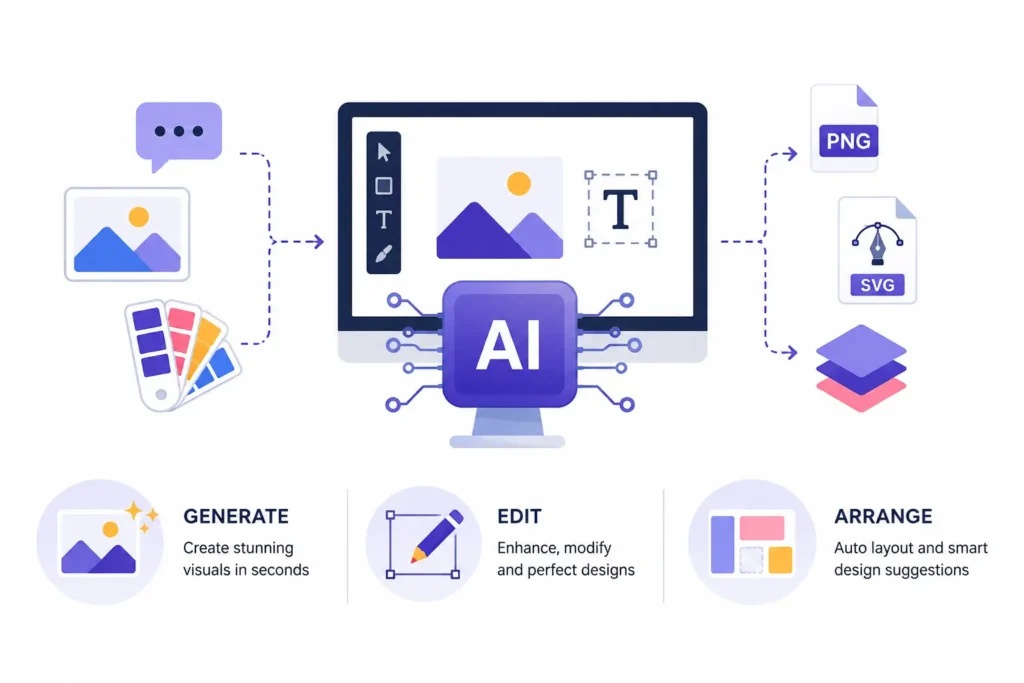
AI graphic design tools use machine learning models to help you generate, edit, or arrange visual content faster than doing it by hand. That covers a lot of ground from a chatbot-style image generator to a full design suite that suggests layouts and colors as you work.
How AI Is Changing Graphic Design
A decade ago, “design tools” meant Photoshop and Illustrator, full stop. Today, a marketer with zero design training can generate a usable social graphic in under a minute. That’s not hype, it’s a real shift in who gets to make visual content, and it’s why platforms like Canva have grown so fast.
What AI Can Automate
AI genuinely handles these tasks well right now:
- Concept generation and rapid ideation
- Image creation from text prompts
- Background removal
- Layout generation from a brief or a template
- Typography exploration
- Color palette suggestions
- Vector creation (on tools like Recraft)
- Image enhancement and upscaling
- Mockup generation
- Content resizing across formats (Instagram, LinkedIn, print)
What AI Cannot Reliably Replace
This is the part a lot of “AI will replace designers” articles skip over. In my experience testing these tools on paid client briefs, AI still falls short on:
- Creative direction that ties back to a brand strategy
- Judging when a design is actually finished versus just generated
- Design-system thinking across dozens of touchpoints
- Accessibility review (contrast, readability, screen-reader compatibility)
- Print preparation (bleed, color profiles, resolution for physical output)
- Client communication and revision management
If you’ve spent any time in design subreddits like r/graphic_design, you’ll see this sentiment repeated constantly. AI is treated as a faster first draft, not a replacement for a designer’s judgment. That view is fairly consistent across working professionals I’ve talked to as well.
How We Selected and Ranked These AI Graphic Design Tools
Evaluation Criteria
I scored each tool on:
- Output quality – Does the result look usable, or does it need heavy cleanup?
- Graphic-design relevance – Is this actually built for design work, or just image generation?
- Ease of use – How steep is the learning curve?
- Editing control – Can you adjust the output, or is it take-it-or-leave-it?
- Typography – Does the tool handle fonts and in-image text well?
- Vector capability – Does it produce scalable, editable vector files?
- Brand consistency – Can you lock in colors, fonts, and logos across projects?
- Free-plan value – Is the free tier actually usable, or just a teaser?
- Pricing – What does it cost to use this tool for real work, not just to try it once?
- Commercial licensing – Can you legally sell or publish what you make?
- Integrations – Does it plug into tools you already use (Photoshop, Slack, Google Drive)?
- Collaboration – Can a team work in it together?
- Export options – What file formats can you get out of it?
Testing Methodology
To keep the comparison fair, I ran each tool through the same set of tasks rather than judging them on cherry-picked demo images.
Test 1: Social media graphic – a square Instagram post promoting a fictional coffee brand. Test 2: Promotional poster – an event poster with a headline, date, and venue details.
Test 3: Product advertisement – a still-life product shot with text overlay.
Test 4: Typography-heavy design – a quote graphic where the text had to be legible and correctly spelled.
Test 5: Logo/brand concept – a simple wordmark and icon concept.
Test 6: Image editing – background removal and object cleanup on an existing photo.
1. Adobe Firefly – Best for Professional Adobe Workflows
What Adobe Firefly Does
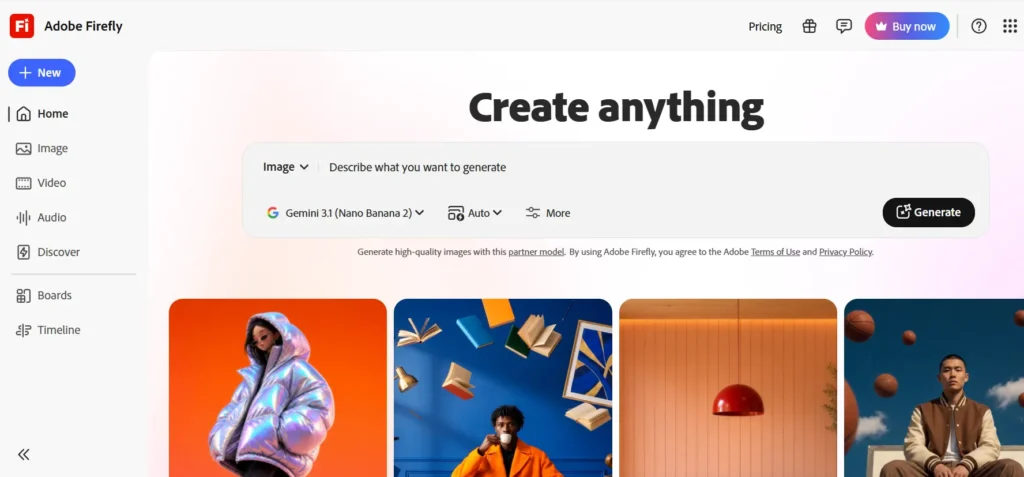
Adobe Firefly is Adobe’s generative AI engine, built into Photoshop, Illustrator, and Adobe Express, and also available as a standalone web app. It generates images, edits photos, and even produces vector graphics and video, all trained on licensed and public-domain content.
Key AI Features
Generative Fill and Expand inside Photoshop, text-to-image generation, generative recolor for vectors in Illustrator, and access to partner models including Google and OpenAI image models within the Firefly app.
Best Graphic-Design Use Cases
Firefly shines when you’re already working inside the Adobe ecosystem and need to extend or clean up an existing design filling in a background, expanding a canvas, or removing an object without leaving Photoshop.
Pricing and Free Access
Firefly offers a free tier with a limited monthly credit allowance, and paid plans that scale up from a standalone Firefly Standard tier to the full Creative Cloud bundle. Pricing has shifted a few times in 2026 as Adobe restructured its credit system, so check Adobe’s official pricing page for the current numbers before you commit.
Commercial-Use Considerations
Firefly’s biggest selling point is that it’s trained on licensed and public-domain material, which is why Adobe positions it as commercially safe with IP indemnification for paying customers. That matters if you’re producing assets for a paying client and want to avoid copyright disputes down the line.
Pros and Cons
Pros: Deep Photoshop/Illustrator integration, commercially safe licensing, strong generative fill. Cons: Credit system can feel restrictive for heavy users, image quality trails Midjourney for pure creative work.
Best For
Designers and agencies already working inside Creative Cloud who need AI features without leaving their existing tools.
2. Canva AI – Best for Beginners and Marketing Graphics
Key AI Features
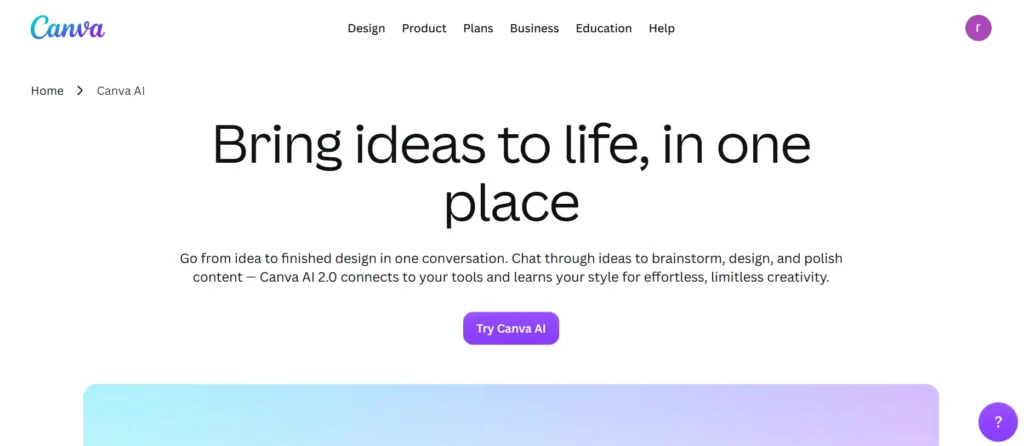
Canva’s AI suite, branded Magic Studio, includes Magic Design (text-to-layout), Magic Write (AI copywriting), Magic Eraser, Magic Expand, Magic Resize, and a Dream Lab image generator.
Best Use Cases
Canva AI is built for people who need a finished graphic fast and don’t have design training. It’s especially strong for social media posts, flyers, presentations, and quick marketing collateral.
Templates and Brand Kits
Canva’s real strength is combining AI generation with a massive template library and a Brand Kit that locks in your logo, colors, and fonts. For projects that require a standard JPG export, its Canva JPG converter can convert image assets into a commonly supported file format. In my testing, generating an on-brand first draft was dramatically faster once the Brand Kit was set up first; that single step made the biggest difference in output quality.
Pricing
Canva Free covers basic AI usage with limited monthly credits. Canva Pro adds a larger AI credit allowance, unlimited Magic Design generations, and full Brand Kit access, priced in the mid-teens per month for individuals Canva has adjusted this price more than once over the past year, so confirm the current rate on canva.com before subscribing.
Pros and Cons
Pros: Extremely easy to learn, huge template library, all AI tools live in one editor. Cons: AI image quality is behind dedicated generators like Midjourney; heavy users can burn through credits quickly.
Best For
Marketers, social media managers, small business owners, and anyone who needs professional-looking graphics without a design background.
3. Midjourney – Best for Creative Concepts and Visual Exploration
What Makes Midjourney Different
Midjourney operates through Discord and its own web app, and it’s still widely considered the benchmark for artistic, editorial-quality image generation. It doesn’t try to be a full design suite, it does one thing, image generation, better than almost anyone else.
Best Design Use Cases
Concept art, moodboards, editorial illustrations, and any project where the image itself needs to feel distinctive rather than generic.
Strengths and Limitations
The strength is obvious in the output Midjourney images have a painterly, considered quality that’s hard to replicate elsewhere. The limitation is just as clear: no built-in layout tools, no brand kit, and text rendering inside images is notably weaker than Ideogram’s.
Commercial-Use Considerations
Midjourney’s standard commercial terms apply to all paid subscribers, though companies above a certain revenue threshold are required to use its higher-tier plans. Check Midjourney’s terms of service for the specifics before using outputs commercially at scale.
Pricing
Midjourney has no free tier. Paid plans start at $10/month for the entry-level Basic tier, running up through higher tiers for teams and heavy production needs, billed by GPU generation time rather than a flat image count. Annual billing typically saves around 20%.
Best For
Designers and creative teams who need striking source imagery and are comfortable exporting it into another tool for layout and text.
4. Ideogram – Best for Typography and Text in Images
Text-Generation Capabilities
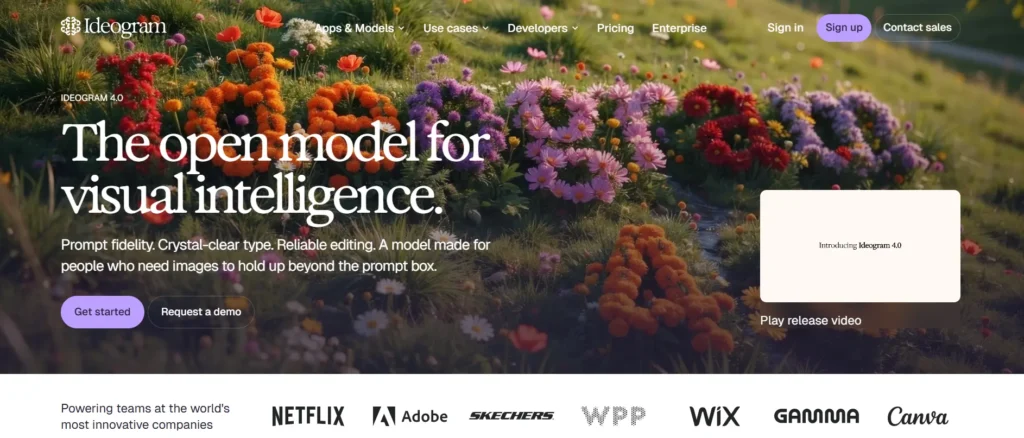
Ideogram’s standout feature is that it actually spells words correctly inside generated images, something most AI image generators still struggle with. If your design needs a poster with real, readable text baked into the artwork, this is the tool built for it.
Poster and Advertising Use Cases
Because it handles in-image text so well, Ideogram is a strong fit for posters, ads, and social graphics where the headline needs to be part of the visual, not a separate overlay.
Typography Strengths
In side-by-side tests, Ideogram consistently rendered short headlines and logos more accurately than Midjourney or Leonardo, which is exactly the gap it was built to close.
Pricing
Ideogram offers a genuinely usable free tier with a limited number of daily prompts, and paid plans starting in the mid-teens per month that add private generations and higher-resolution output.
Pros and Cons
Pros: Best-in-class text rendering, usable free tier, straightforward commercial terms on paid plans. Cons: Overall image style is less painterly than Midjourney; smaller community and fewer third-party tutorials.
Best For
Anyone designing posters, ads, or social graphics where legible in-image text is a hard requirement.
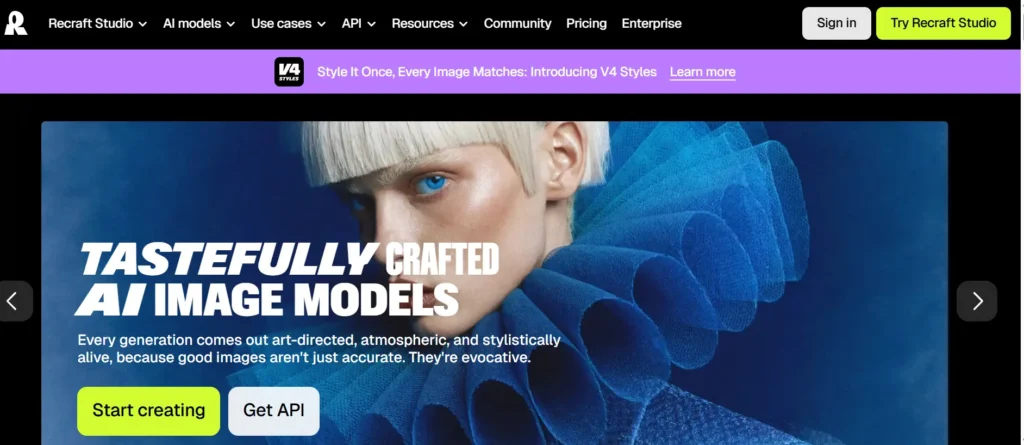
5. Recraft – Best for AI Vector Graphics
Vector Generation
Recraft is one of the only AI tools that generates true, native vector graphics rather than a raster image you have to trace afterward. That distinction matters a lot for anything that needs to scale logos, icon sets, and print materials.
SVG and Editable Assets
Because outputs come as real SVG files, you can open them in Illustrator or Figma and edit individual shapes, not just apply filters to a flat image.
Icons and Illustrations
Recraft is particularly good at generating consistent icon sets and flat illustration styles, which makes it useful for building out a design system quickly.
Brand-Asset Use Cases
If you need dozens of matching icons or illustrations in one visual style, Recraft’s vector output saves a lot of manual redrawing compared to raster-based generators.
Pricing
Recraft offers a permanent free tier with a modest daily credit allowance, and paid plans starting around $10/month for full commercial rights and faster generation.
Pros and Cons
Pros: Genuine SVG output, strong icon and illustration consistency, solid free tier. Cons: Photorealistic image quality lags behind Midjourney; team pricing is less transparent than competitors.
Best For
Designers who need scalable, editable vector assets rather than flat, uneditable images.
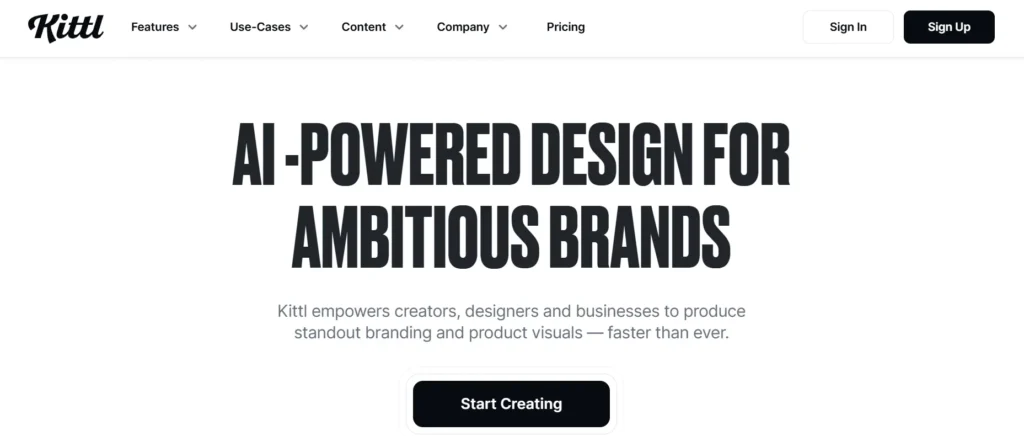
6. Kittl – Best for Logos, Typography and Print Design
AI Design Features
Kittl combines a multi-model AI image generator with an AI vectorizer and a growing set of AI video tools, all inside one design canvas built specifically for branding and print work.
Typography Tools
Kittl leans hard into typography; it was built originally as a logo and lettering tool, and that DNA still shows in how much control you get over fonts, text effects, and layout.
Merchandising and Print Workflows
Kittl’s template library is oriented toward things people actually print and sell: apparel, packaging, posters, and merch mockups.
Mockups
Built-in mockup generators let you preview a design on a t-shirt, mug, or poster without leaving the app, which speeds up client presentations noticeably.
Pricing
Kittl’s free tier gives you a one-time token allowance to test the platform, with paid plans running in the mid-teens to low-twenties per month depending on how many monthly generation tokens you need.
Pros and Cons
Pros: Strong for branding and print, good mockup tools, active typography controls. Cons: Smaller asset library than Canva, no mobile app, token system takes some getting used to.
Best For
Freelancers and small studios producing logos, merch designs, and print-ready branding assets.
7. Leonardo.Ai – Best for Custom Visual Assets
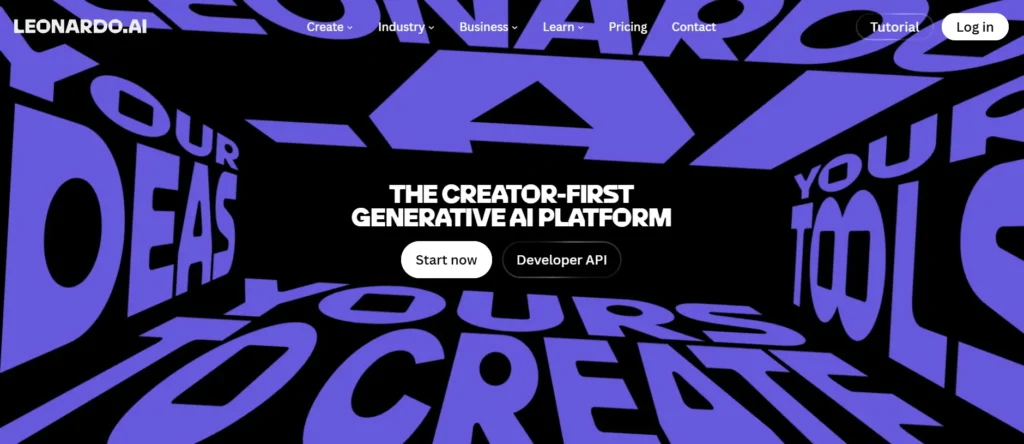
Image Generation
Leonardo generates images across a wide range of styles and includes a large library of community-trained models, which makes it particularly strong for game assets, character art, and stylized illustration.
Style Consistency
Leonardo’s fine-tuning and reference tools make it easier to keep a consistent character or style across multiple generations, which matters if you’re building a series of related assets rather than a single image.
Creative Asset Generation
Beyond static images, Leonardo includes an AI canvas for inpainting and outpainting, which lets you edit and extend generated images without switching tools.
Pricing
Leonardo offers a generous free tier with a daily token allowance, and paid plans starting around $10–12/month, scaling up for higher-volume production needs.
Pros and Cons
Pros: Generous free tier, strong style consistency, good built-in editing canvas. Cons: General image quality is a step behind Midjourney and Recraft for professional production work.
Best For
Game designers, illustrators, and creators who need a consistent visual style across many related images.
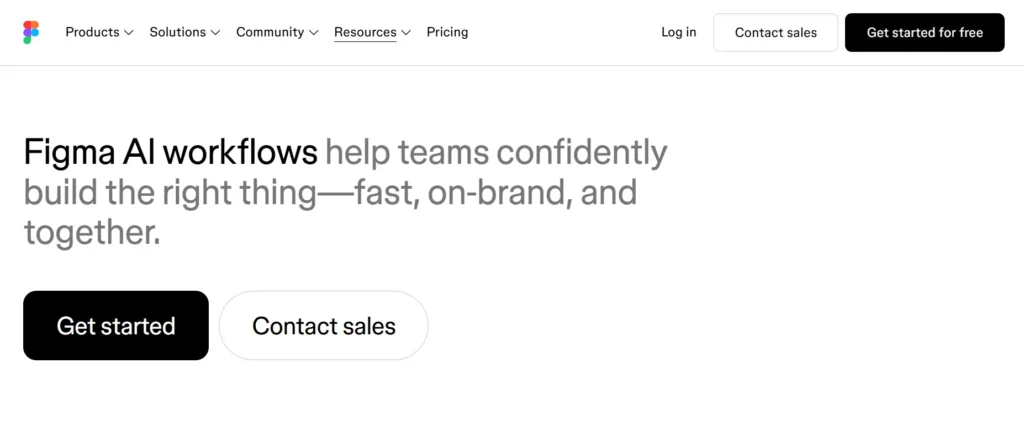
8. Figma AI – Best for UI and Product Design
AI-Assisted Interface Design
Figma has folded AI features directly into its design and prototyping workflow, including layer renaming, content generation, and Figma Make, which turns a prompt into a working interface draft.
Wireframes and Prototypes
For UI/UX work specifically, Figma AI can speed up early-stage wireframing, though most designers I’ve spoken with still treat its output as a rough starting point rather than a finished deliverable.
Design Systems
Figma remains the industry standard for maintaining shared component libraries and design systems, and its AI features are layered on top of that existing strength rather than replacing it.
Team Collaboration
Real-time multiplayer editing is still Figma’s core advantage, and it applies to AI-generated content just as it does to manually created designs.
Pricing
Figma has a usable free starter plan, with paid seat pricing that varies by seat type Professional seats run in the high teens to low twenties per month, and Organization and Enterprise seats cost significantly more. Figma also introduced AI credit limits in 2026, so heavy AI users on lower tiers may need to budget for credit top-ups.
Pros and Cons
Pros: Best-in-class for UI design systems and team collaboration, AI features integrate directly into existing workflow. Cons: Not built for marketing graphics or print; AI credit system adds cost complexity for heavy users.
Best For
Product designers and UI/UX teams who need AI assistance inside an existing interface-design workflow, not general graphic design.
9. Clipdrop – Best for AI Image Editing and Cleanup
Background Removal
Clipdrop’s background remover is fast and handles complex edges, hair, fur, transparent objects noticeably better than most built-in tools in general design platforms.
Image Cleanup
The cleanup tool lets you erase unwanted objects from a photo with a simple brush stroke, which is genuinely useful for product photography touch-ups.
Upscaling
Clipdrop’s upscaler can take a low-resolution image and enlarge it without the blurriness you’d get from a basic resize, which matters when you’re preparing assets for print.
Object Removal
Combined with background removal and cleanup, Clipdrop functions well as a lightweight photo-editing companion to whatever design tool you’re already using.
Best Use Cases
Cleaning up product photos, isolating subjects for compositing, and preparing images before dropping them into Canva, Photoshop, or a Kittl project.
Pricing
Clipdrop offers free access to its core tools with usage limits, and paid credit packs or subscriptions for higher-volume or commercial use.
Pros and Cons
Pros: Excellent background removal and upscaling, works as a fast standalone utility. Cons: Not a full design tool you’ll still need something else to build the final layout.
Best For
Anyone who needs fast, high-quality photo cleanup before dropping images into a separate design tool.
10. Designs.ai – Best for All-in-One Creative Production
AI Design Features
Designs.ai bundles a logo maker, image generator, video maker, and voiceover tool into one subscription, aimed at small businesses that need a bit of everything without buying five separate tools.
Graphics and Content Generation
The platform generates social graphics, ads, and basic marketing collateral from templates combined with AI-assisted customization.
Branding Capabilities
Its logo maker walks you through a guided questionnaire and generates several concepts, similar in spirit to Looka or Tailor Brands, though with a broader toolset attached.
Pricing
Designs.ai offers a limited free tier and paid plans starting around $19/month, which is competitive if you actually use the video and voiceover tools alongside the image features less so if you only need one of them.
Pros and Cons
Pros: Genuinely all-in-one logo, image, and video generation under one subscription. Cons: Each individual tool is less capable than a dedicated specialist (Canva for design, Midjourney for images, Kittl for branding).
Best For
Small businesses that want one subscription covering logos, graphics, and basic video without juggling multiple tools.
Best AI Graphic Design Tool by Use Case
- Best overall AI graphic design tool: Canva AI, for the breadth of its workflow
- Best free AI graphic design tool: Canva AI or Recraft, both offer genuinely usable free tiers
- Best for beginners: Canva AI
- Best for professional designers: Adobe Firefly
- Best for logos: Kittl
- Best for social media graphics: Canva AI
- Best for posters: Ideogram
- Best for typography: Ideogram or Kittl
- Best for vector graphics: Recraft
- Best for branding: Kittl
- Best for UI/UX: Figma AI
- Best for image editing: Clipdrop
- Best for agencies: Adobe Firefly, for licensing safety across client work
AI Graphic Design Tools Comparison
| Tool | Free Plan | Image Gen | Vector Gen | Typography | Templates | Branding | Photo Editing | UI Design | Collaboration | Commercial Use | Beginner-Friendly |
| Adobe Firefly | Yes | Strong | Limited | Basic | Some | Via CC libraries | Strong | No | Yes (CC) | Indemnified | Moderate |
| Canva AI | Yes | Moderate | No | Good | Extensive | Strong (Brand Kit) | Basic | No | Yes | Standard | Very easy |
| Midjourney | No | Best-in-class | No | Weak | None | No | No | No | Limited | Standard terms | Moderate |
| Ideogram | Yes | Strong | No | Excellent | Limited | Basic | No | No | Limited | Standard | Easy |
| Recraft | Yes | Good | Excellent | Good | Some | Moderate | Basic | No | Limited | Standard | Moderate |
| Kittl | Yes | Good | Good (vectorizer) | Excellent | Good | Strong | Basic | No | Limited | Standard | Easy |
| Leonardo.Ai | Yes | Strong | No | Weak | None | No | Some (canvas) | No | Limited | Standard | Moderate |
| Figma AI | Yes | Basic | No | Basic | UI kits | Design systems | No | Best-in-class | Best-in-class | Standard | Moderate–hard |
| Clipdrop | Yes | No | No | No | No | No | Excellent | No | No | Standard | Very easy |
| Designs.ai | Yes | Moderate | No | Basic | Good | Basic logo tools | Basic | No | Limited | Standard | Easy |
Free vs Paid AI Graphic Design Tools
Best Free AI Tools
Canva, Recraft, Leonardo.Ai, and Ideogram all offer free tiers generous enough to genuinely evaluate the tool before paying. Clipdrop’s free tier covers most casual photo-editing needs on its own.
What Free Plans Usually Limit
Across almost every tool on this list, free plans cap you in similar ways:
- Credits – a daily or monthly cap on generations
- Resolution – lower-res output than paid tiers
- Exports – limited file formats, sometimes no PNG or SVG export
- Watermark removal – some free tiers still watermark outputs
- Commercial usage – a few platforms restrict commercial use to paid plans specifically
- Advanced features – brand kits, private generation, and priority processing are almost always paywalled
When a Paid AI Design Tool Is Worth It
If you’re producing content more than a few times a week, or you need commercial-use rights guaranteed in writing, a paid plan usually pays for itself quickly in time saved. That was consistently true across the tools I tested for this guide.
AI Image Generator vs AI Graphic Design Tool: What’s the Difference?
AI Image Generators
Tools like Midjourney, Leonardo, and (to an extent) Ideogram exist to turn a text prompt into a picture. They don’t understand layout, brand guidelines, or file structure for print that part is on you.
AI Graphic Design Platforms
Canva, Adobe Firefly, and Kittl wrap image generation inside a full design environment: templates, typography tools, brand kits, and export options built for actual production work.
Vector-Based AI Tools
Recraft stands apart here as the only tool built around native vector generation, which matters for anything that needs to scale without losing quality.
UI/UX AI Tools
Figma AI serves a different job entirely: it’s for interface and product design, not marketing graphics, and it shouldn’t be compared directly to the others on output type.
Which One Should You Choose?
If you need a striking, one-off image, use an image generator. If you need a finished, on-brand deliverable, use a design platform. If you need scalable vector assets, Recraft is close to the only real option.
How to Choose the Right AI Graphic Design Tool
- Define your design task – social post, poster, logo, or UI screen each points to a different tool.
- Check output quality – run the same prompt across two or three tools before committing.
- Check editing and export options – make sure you can actually get a usable file out.
- Evaluate typography – if text matters, test Ideogram or Kittl specifically.
- Check vector support – Recraft if scalability matters.
- Review commercial licensing – read the actual terms, not just the marketing page.
- Compare pricing and usage limits – credits run out faster than you’d expect on active projects.
- Check Adobe/Figma/Canva integrations – pick a tool that fits your existing stack.
- Consider collaboration – solo creators and teams have different needs here.
- Test before committing – nearly every tool on this list has a usable free tier; use it.
How to Use AI in a Real Graphic Design Workflow
A workflow that’s actually worked well on client projects looks like this:
- Define the creative brief – audience, message, format, and brand constraints.
- Generate visual concepts – Midjourney or Leonardo for broad exploration.
- Select the strongest direction – narrow to one or two concepts worth developing.
- Build the actual design – move into Canva, Kittl, or Photoshop for layout.
- Apply brand guidelines – colors, fonts, and logo placement.
- Refine typography and layout – adjust spacing, hierarchy, and readability.
- Perform human quality control – check for AI artifacts, odd hands, or garbled text.
- Check licensing and factual accuracy – confirm commercial rights and that nothing resembles existing IP.
- Export for web, social, or print – match resolution and format to the final channel.
Example: Creating a Social Media Campaign With AI
Brief: Create a product campaign for Instagram.
Workflow:
- Generate visual concepts in Midjourney or Ideogram based on the product description.
- Create supporting imagery lifestyle shots or background textures.
- Build the layout in Canva or Kittl using a campaign template.
- Apply brand colors from the Brand Kit.
- Add typography, using Ideogram-style text-in-image or Canva’s text tools.
- Create multiple aspect ratios (1:1, 4:5, 9:16) using Magic Resize or manual export.
- Review and export final assets.
Final human-review checklist:
- Logo placement
- Typography accuracy
- Color accuracy against brand guidelines
- Product accuracy (AI-generated products can look “almost right” but wrong)
- Spelling (double-check AI-generated text every time)
- Brand consistency across formats
- Image quality at final export resolution
- Licensing confirmation
Are AI-Generated Designs Safe for Commercial Use?
Why Licensing Matters
Using an AI-generated image commercially without checking the platform’s terms can expose a business to real legal risk, particularly around copyright and trademark claims.
Commercial-Use Differences Between Tools
Adobe Firefly offers indemnification for paying Creative Cloud customers, which is a meaningfully stronger guarantee than most competitors provide. Midjourney and other subscription-based generators typically grant commercial rights to paying subscribers under their standard terms, but the specifics and revenue thresholds that require higher tiers vary by platform.
Copyright Considerations
AI models are trained on large datasets, and the copyright status of AI-generated output is still an evolving legal area in most jurisdictions. This is a genuinely unsettled question worth following if it affects your business see the Wikipedia overview of AI and copyright law for a neutral summary of where things currently stand.
Trademark and Logo Considerations
Be especially careful with AI-generated logos, always run a trademark search before adopting one for a business, since AI models can unintentionally produce marks that resemble existing brands.
What Businesses Should Verify Before Publishing
Always check the specific commercial-use clause of whichever plan you’re on, not just the general marketing claims. Important: AI licensing policies and plan restrictions change often, so verify current vendor terms directly before publishing commercial work.
Benefits of Using AI for Graphic Design
- Faster ideation and concept exploration
- Reduced repetitive work (resizing, background removal)
- More design variations to choose from in less time
- Faster content production for high-volume channels like social media
- Easier image editing for non-specialists
- Better scalability across formats and platforms
- Support for non-designers who need visual content
- Improved creative experimentation at low cost
Limitations of AI Graphic Design Tools
- Inconsistent outputs across generations of the same prompt
- Typography errors, especially outside of Ideogram and Kittl
- Brand inconsistency without a locked-in style or brand kit
- Limited editability on raster-only tools
- Copyright and licensing uncertainty in some jurisdictions
- Over-reliance on generic, template-driven designs
- Continued need for human quality control on every output
Will AI Replace Graphic Designers?
What AI Is Good At
Speed, volume, and first-draft exploration. AI genuinely removes hours of repetitive work from a designer’s week.
What Professional Designers Still Do Better
Creative direction, brand strategy, design-system thinking, and knowing when a design is actually finished the judgment calls AI tools consistently fall short on.
How Designers Can Adapt
Designers who’ve adopted AI as a first-draft tool, rather than resisting it, tend to describe it as a genuine productivity gain rather than a threat, a pattern echoed often in discussions on r/graphic_design and in LinkedIn posts from working creative directors reflecting on how their workflows have changed.
AI Skills Graphic Designers Should Learn
- Prompting – writing clear, specific prompts for consistent results
- AI-assisted art direction – guiding AI output toward a coherent style
- Brand consistency – using brand kits and reference images effectively
- AI editing – background removal, inpainting, and upscaling
- Creative evaluation – judging AI output critically, not just accepting it
- Workflow automation – combining AI tools with existing production pipelines
- Copyright awareness – understanding licensing terms across platforms
Frequently Asked Questions About AI Graphic Design Tools
1. What is the best AI tool for graphic design?
There’s no single best tool, Canva AI is the best all-rounder for most people, Adobe Firefly is best for professional Adobe workflows, and Midjourney remains the top choice for pure image quality.
2. What is the best free AI graphic design tool?
Canva’s free plan is the most complete free experience for actual design work, while Recraft and Leonardo.Ai offer the most generous free image-generation credits.
3. Which AI tool is best for beginners?
Canva AI, thanks to its guided templates and simple drag-and-drop editor.
4. Which AI tool is best for creating logos?
Kittl, for its typography-first approach and print-ready export options; Recraft if you specifically need native vector output.
5. Which AI tool is best for social media design?
Canva AI, because of its template library and one-click resizing across platforms.
6. Can AI create professional graphic designs?
Yes, with human review. AI tools can produce professional-quality first drafts, but they still need a trained eye for brand consistency, typography, and final polish.
7. Can AI generate vector graphics?
Yes, Recraft is the leading tool for native vector output, and Kittl includes an AI vectorizer for converting raster images.
8. Can AI replace graphic designers?
Not currently. AI handles production speed well but still falls short on creative direction, strategy, and final-quality judgment.
9. Are AI-generated graphics copyright-free?
Not automatically. Copyright status varies by jurisdiction and platform, and this remains a genuinely unsettled legal question. Always check current terms before assuming an image is free to use.
10. Can I use AI-generated designs commercially?
Usually yes on paid plans, but terms vary significantly by platform Adobe Firefly offers the strongest commercial guarantees among the tools covered here.
11. Which AI tool is best for typography?
Ideogram for in-image text accuracy; Kittl for broader typography design control.
12. Which AI design tool works best with Photoshop?
Adobe Firefly, since it’s built directly into Photoshop’s Generative Fill and related tools.
Conclusion
After testing all ten of these platforms side by side, my honest take is this: pick based on the job, not the hype. If you’re a beginner or a small business, start with Canva AI. It covers the widest range of everyday design needs in one place. If you’re already inside the Adobe ecosystem or handling client work that needs airtight licensing, Adobe Firefly is worth the investment. And if striking, original imagery is the priority over workflow convenience, Midjourney still leads the pack.
The best AI tools for graphic design in 2026 aren’t competing to replace designers, they’re competing to remove the boring parts of the job. Use them that way, and the “top 10 AI tools for graphic design” question stops being about picking a winner and starts being about picking the right tool for what’s actually in front of you.
Pricing and features for AI design tools change frequently. Always confirm current plans and commercial-use terms directly on each vendor’s website before subscribing or publishing commercial work.