Leaving accounts logged in on a public computer, a shared office machine, or a library terminal is one of the most common and most overlooked security mistakes. Super Logout is a free, single-page web utility built to solve exactly that problem: instead of signing out of Gmail, Facebook, Amazon, and a dozen other services one at a time, it lets you trigger logout requests for many of them at once. This guide breaks down how Super Logout actually works under the hood, when it genuinely helps, where it falls short, and which alternatives are worth pairing it with for real day-to-day privacy.
What Is Super Logout?
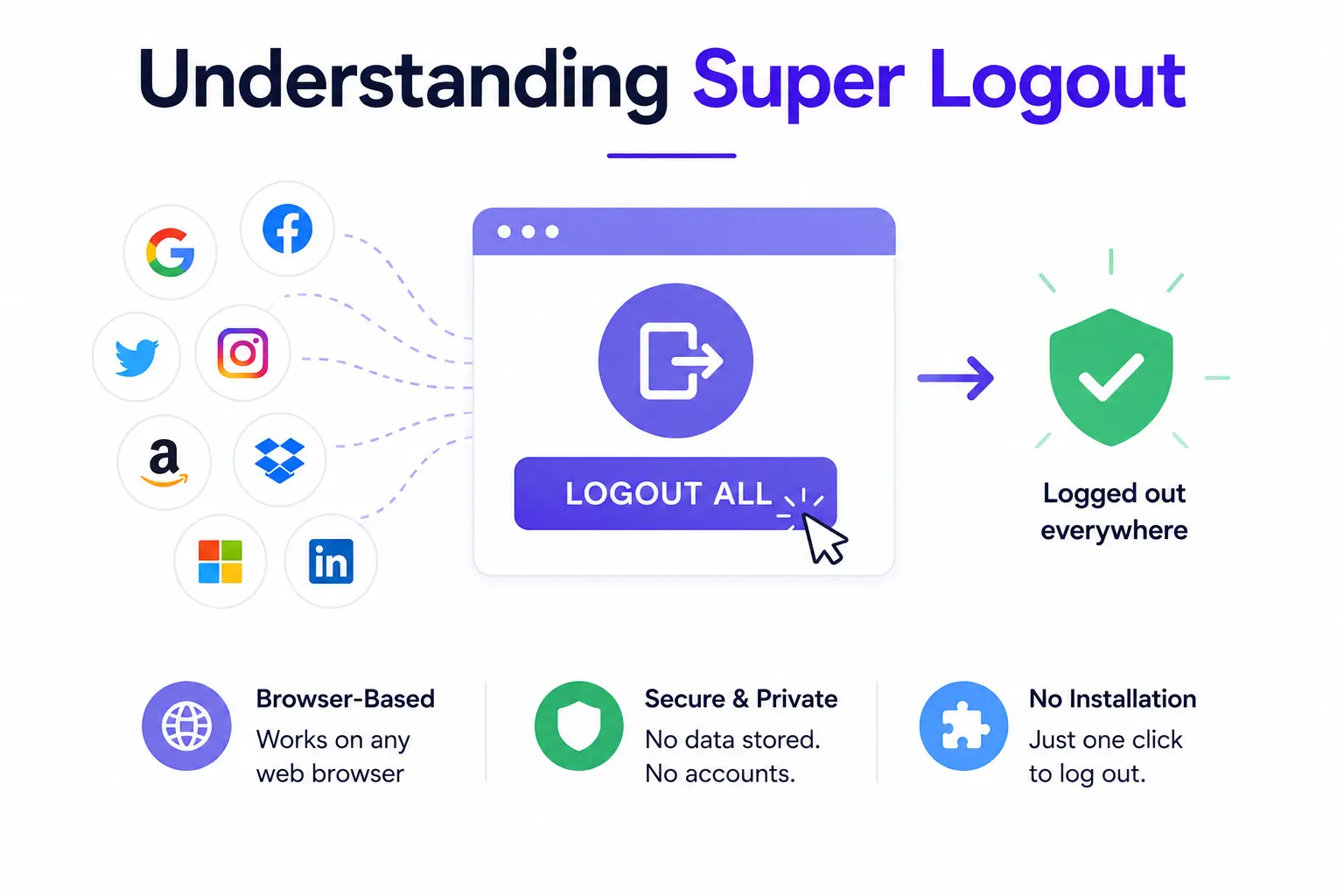
Super Logout is a browser-based tool that sends logout requests to multiple websites in the background when you click a single button, rather than requiring you to visit each site and click “Sign Out” individually. It runs entirely from a web page, so there is nothing to install and no account to create.
Why It Was Created
The tool exists because modern browsing habits leave people signed into many services at once -email, social media, shopping, cloud storage – and manually signing out of each one is tedious enough that most people simply skip it. Super Logout was built to close that gap with a single, low-friction action aimed mainly at shared and public computers.
Who Should Use It
Super Logout is most useful for anyone who regularly uses a device that isn’t exclusively their own:
- Students and researchers using library or lab computers
- Employees on shared office workstations or kiosk terminals
- Travelers using cyber cafés or hotel business centers
- Families sharing a single home computer across multiple people
- Anyone who wants a fast privacy “reset” before handing a device to someone else
How Super Logout Works

Logout URLs
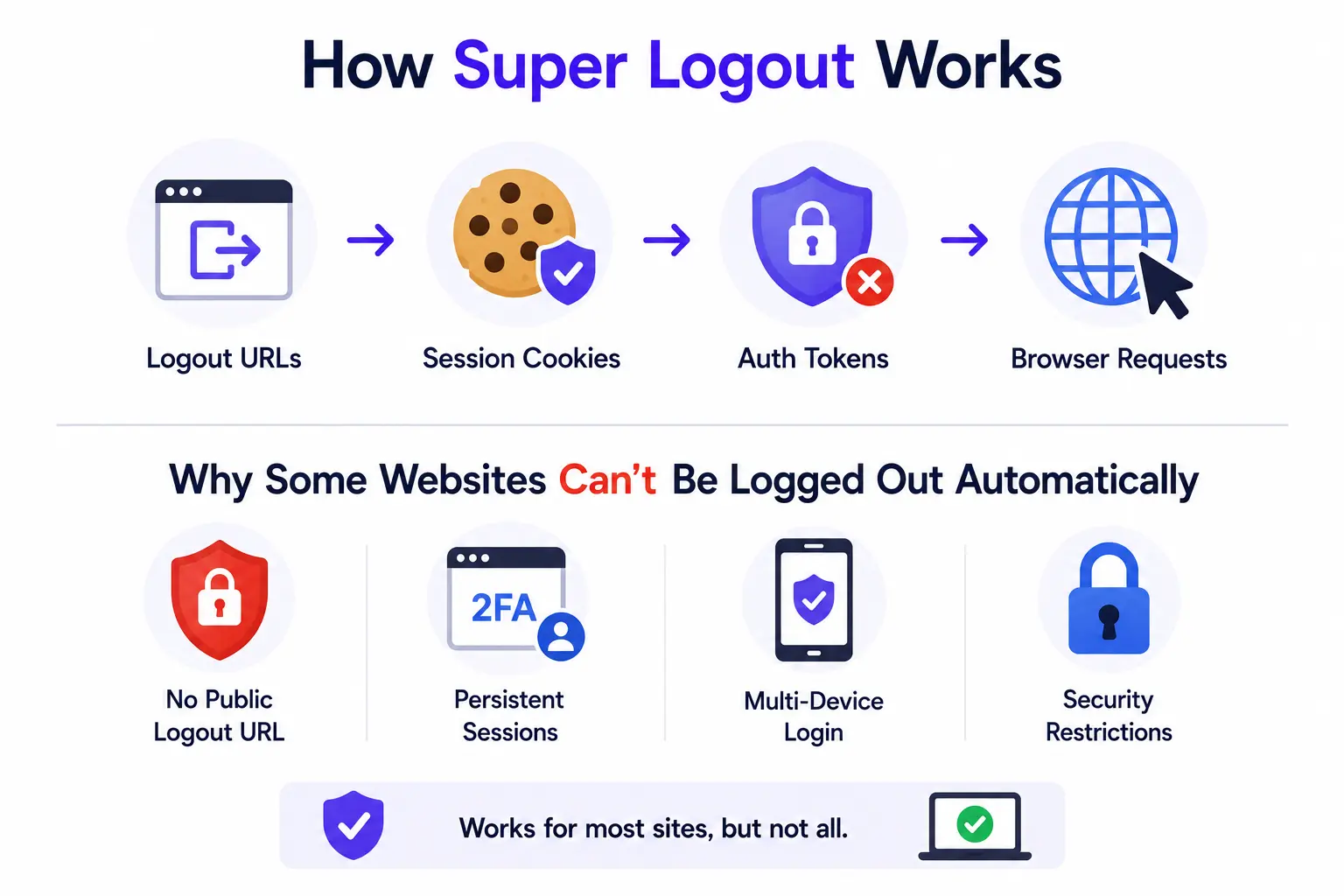
Most major websites expose a dedicated logout endpoint – a specific URL that, when loaded, tells the server to end your current session. Super Logout maintains a list of these endpoints for popular platforms and loads them quietly, usually inside hidden requests or background frames, when you press the logout button.
Session Cookies
When you sign in to a site, the server issues a session cookie stored in your browser that proves you’re authenticated on future requests. Hitting a logout URL instructs the server to invalidate that session and asks the browser to clear the associated cookie, which is the core mechanic behind every entry on Super Logout’s list.
Authentication Tokens
Many modern apps also rely on tokens (such as OAuth access or refresh tokens) rather than, or in addition to, simple cookies. Because these tokens are often stored in local storage or managed by a separate identity provider, a generic logout URL doesn’t always reach them, which is one reason token-based sessions are harder for any multi-site logout tool to fully clear.
Browser Requests
Technically, Super Logout is firing a batch of HTTP GET requests, one per supported service, from your current browser context. Because these requests carry your existing cookies, the receiving server can identify and end your session without you visiting the site directly.
Why Some Websites Cannot Be Logged Out Automatically
Sites that require a POST request with a CSRF (cross-site request forgery) token instead of a simple GET request can’t be logged out via a background link, since the token has to be fetched and submitted correctly. Sites using single sign-on, passkeys, or heavily sandboxed session storage often fall into this category, which is why coverage varies from platform to platform.
Why Use Super Logout?
Public Computers
On a library or internet-café PC, forgetting to log out of even one account can expose personal messages, financial details, or saved payment methods to the next user. A single click before walking away meaningfully lowers that risk.
Shared Devices
Households or classrooms that share one laptop across several people benefit from a fast way to clear the previous user’s sessions before someone else logs in with their own accounts.
Office Systems
Hot-desking and shift-based workstations mean multiple employees may use the same machine in a single day. A quick logout routine between shifts helps keep each person’s accounts separate.
Cyber Cafés
Cyber café terminals are used by dozens of strangers daily, making them a high-risk environment for leftover sessions. Super Logout offers a faster safety net than relying on every visitor to remember individual sign-outs.
Privacy Protection
Beyond shared machines, some people simply prefer a habit of clearing active sessions periodically as part of a broader personal-privacy routine, similar to clearing browser history.
Key Features
One-Click Logout
The entire workflow is a single button press – there is no multi-step wizard or settings screen to configure.
Multi-Site Support
Rather than covering just one platform, the tool targets a list of widely used services simultaneously, which is the main time-saving benefit over manual logout.
No Installation Required
Because it runs as a plain web page, there’s no browser extension permissions to grant and nothing left behind on the device after you close the tab.
Free to Use
Super Logout doesn’t require payment, an account, or a subscription — it’s accessible to anyone with a browser.
Supported Websites
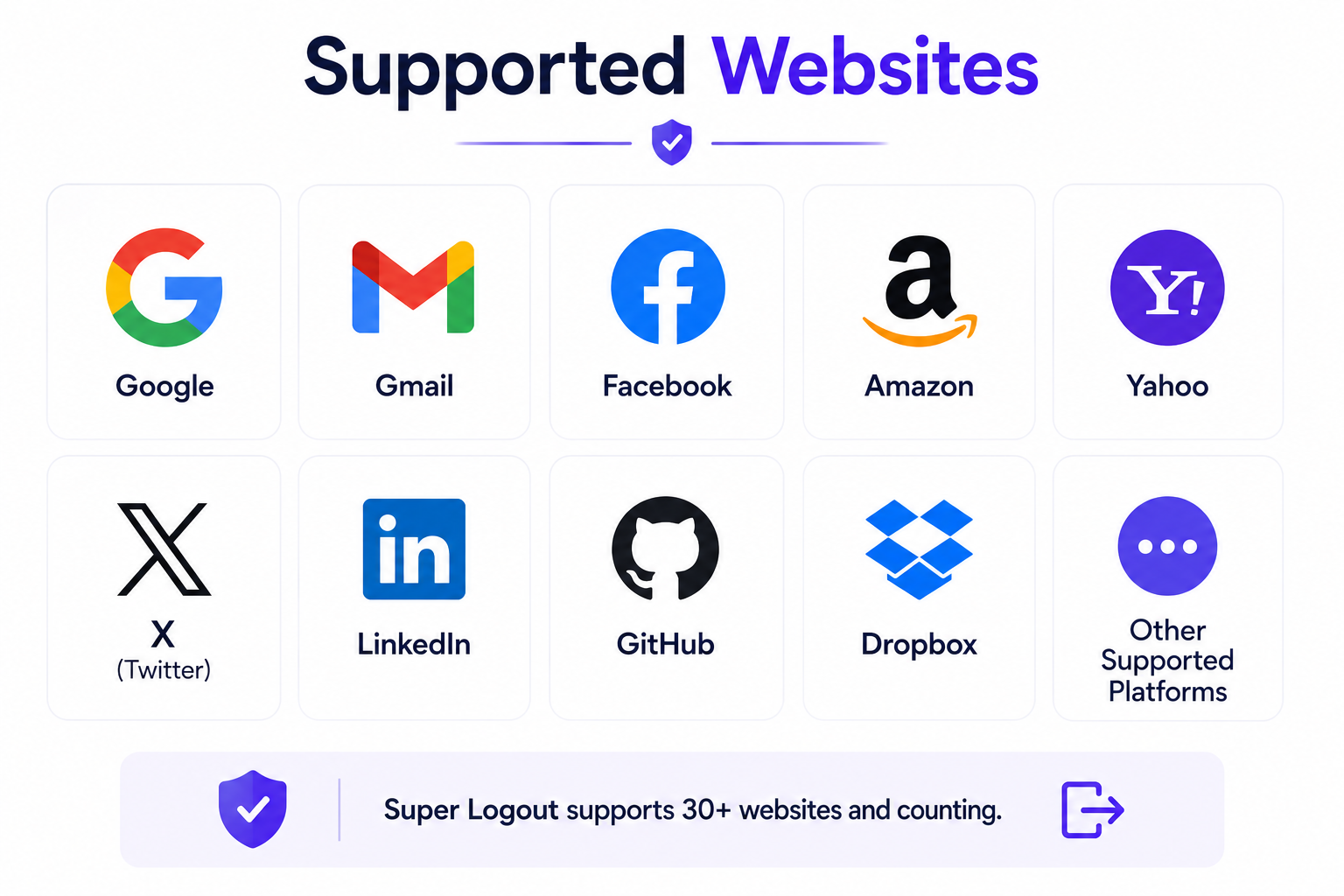
Super Logout’s exact list of supported services can change over time and isn’t always published in full detail, but publicly available reviews and usage reports consistently mention broad support for major consumer platforms. Treat the list below as representative rather than guaranteed, and always confirm manually on unfamiliar or sensitive accounts.
Google’s account logout endpoint is commonly included, which can also affect other Google-linked services in the same browser session.
Gmail
Gmail sessions are tied to the same Google account system, so logging out of Google typically logs out of Gmail as well.
Facebook’s dedicated logout URL is a frequent inclusion given how commonly the platform stays signed in on shared devices.
Amazon
Amazon sessions are especially sensitive given saved payment methods, making it a priority target for multi-site logout tools.
Yahoo
Yahoo Mail and related Yahoo services are frequently listed among supported platforms.
X (Twitter)
X’s logout endpoint is commonly supported, though platform changes to authentication flows can affect reliability over time.
LinkedIn is often included given its popularity on office and co-working shared devices.
GitHub
GitHub logout support is useful in shared development environments, though tokens used for CLI or API access aren’t cleared this way.
Dropbox
Dropbox is commonly listed, which matters given how often cloud-storage accounts stay signed in across sessions.
Other Supported Platforms
Additional consumer platforms are sometimes included depending on the tool’s current list. Because coverage isn’t officially published in detail, it’s good practice to manually verify any account that holds sensitive financial or personal data.
Step-by-Step Guide
Open Super Logout
- Navigate to the Super Logout web page in your browser — no login or download is needed.
Select Services
- Review the list of supported sites shown on the page, if the version you’re using allows selecting or deselecting specific services.
Run Logout
- Click the logout button to trigger background logout requests for the selected services.
Verify Success
- Manually reload one or two of the sites you were signed into to confirm the session actually ended, since automated confirmation isn’t always shown on-page.
Is Super Logout Safe?
Security Analysis
Functionally, Super Logout does nothing more than a browser would do if you manually visited each logout link – it isn’t intercepting your passwords or transmitting credentials anywhere, since logout requests don’t require re-entering login details. That said, because it’s a third-party page acting on your active sessions, it’s worth using tools with a visible, well-reviewed track record rather than an unfamiliar clone site.
Browser Permissions
Because Super Logout runs as a plain web page rather than a browser extension, it typically doesn’t request elevated permissions like reading browsing history or accessing other tabs, which limits its exposure compared to some extensions.
Privacy Considerations
The tool interacts with your already-authenticated sessions rather than collecting new personal data, but as with any third-party utility, it’s reasonable to review its privacy policy before relying on it for sensitive accounts.
Known Limitations
Super Logout cannot guarantee every session is fully cleared, cannot bypass sites that require confirmation dialogs, and has no visibility into token-based or app-level sessions running outside the browser.
Advantages
Saves Time
Ending ten sessions with one click is faster than visiting ten separate sites and menus.
Better Privacy
Reduces the odds that a forgotten session exposes personal information to the next person using the device.
Easy to Use
No technical knowledge, account, or setup is needed it works the same way for any visitor.
Reduces Human Error
People routinely forget to sign out of at least one service when doing it manually; batching the action removes that gap.
Limitations
Doesn’t End Every Session
Only sites on the tool’s supported list are affected — any account outside that list needs a manual logout.
Some Websites Block Automated Logout
Sites requiring CSRF-protected POST requests, extra confirmation clicks, or additional verification steps can’t be reliably logged out by a background request.
OAuth Issues
Services that authenticate through a third-party identity provider (“Sign in with Google/Apple/Facebook”) may retain a session with that provider even after the app itself appears logged out, since the underlying token lives with the provider, not the app.
Passkey Limitations
Passkey-based sign-ins are tied to device-level credential storage rather than a simple session cookie, so a logout URL alone generally can’t revoke or affect passkey trust on the device.
Super Logout vs Other Methods
Here’s how Super Logout compares with other common ways people try to end sessions or protect privacy on a device:
| Method | Speed | Coverage | Best For |
| Super Logout | Very fast (one click) | Limited to supported sites | Quick multi-account logout |
| Clearing cookies | Fast | Broad, but breaks saved preferences too | Full session reset |
| Incognito mode | Instant (session never saved) | All sites, but only for that session | One-off private browsing |
| Browser history deletion | Fast | Doesn’t end active sessions | Hiding activity, not logging out |
| Password managers | Moderate | Depends on manager’s session tools | Centralized credential control |
| Sign Out Everywhere features | Moderate (per site) | Very thorough for that one site | High-security single accounts |
Clearing Cookies
Deleting cookies removes session data for every site at once, which is more thorough than Super Logout’s list-based approach, but it also wipes saved logins and preferences you may have wanted to keep.
Incognito Mode
Private browsing avoids the problem entirely by never saving session cookies past the window’s lifetime, but it requires planning ahead rather than cleaning up after the fact.
Browser History Deletion
Clearing history only removes the record of sites visited — it does not end active login sessions, so it isn’t a substitute for logging out.
Password Managers
Some password managers include their own session or device-management tools, which can be more precise but usually require the manager itself to be set up in advance.
Sign Out Everywhere Features
Google, Facebook, and several other platforms offer a built-in “log out of all devices” option in account settings, which is more thorough than a third-party tool for that single account, since it’s run by the platform itself.
Best Alternatives
Browser Privacy Extensions
Extensions built for session and cookie management can offer more granular control, such as auto-clearing cookies for specific domains when a tab closes.
Password Managers
A password manager with built-in device or session management gives a more complete picture of where you’re logged in across services.
Manual Logout
For sensitive accounts, manually visiting the site and clicking sign out remains the most reliable method, since it uses the platform’s own confirmed logout flow.
Browser Profiles
Creating a separate browser profile for shared-device use keeps sessions isolated from your personal profile, avoiding the mixing problem in the first place.
Guest Mode
Most browsers and operating systems offer a guest mode that starts with no saved logins and discards everything on exit, which is often the safest option for a public computer.
Troubleshooting
Website Didn’t Log Out
If a site still shows you as logged in after running Super Logout, refresh the page fully (not from cache) and, if it persists, log out manually — the site may require a confirmation step the tool can’t complete.
Browser Compatibility
Modern Chromium-based browsers (Chrome, Edge, Brave) and Firefox generally handle background logout requests consistently; older or heavily restricted browsers may block some requests due to stricter cross-site request policies.
Login Persists
Persistent logins are often caused by “remember me” tokens stored separately from the session cookie – these usually require clearing site data or logging out from the account’s own security settings page.
Cookie Problems
Browser extensions that block third-party cookies or trackers can sometimes interfere with background logout requests; temporarily disabling strict cookie blocking can help if a specific site won’t clear.
Best Practices for Online Security
Public Computer Checklist
- Use guest mode or a private window whenever available
- Run a multi-site logout tool before stepping away
- Manually confirm logout on banking or email accounts
- Clear cookies and cached form data before leaving
Shared Device Checklist
- Use separate browser profiles per person where possible
- Avoid saving passwords directly in the browser on shared machines
- Log out fully at the end of each session, not just close the tab
Multi-Factor Authentication
Enabling multi-factor authentication adds a second barrier even if a session is somehow left open or a password is exposed, making it one of the highest-impact security habits available.
Password Hygiene
Using unique passwords per account, ideally generated and stored in a password manager, limits the damage if any single session or credential is compromised.
Frequently Asked Questions
Is Super Logout an official product from Google or Facebook?
No. It’s an independent, third-party tool that sends standard logout requests to multiple platforms – it isn’t operated or endorsed by the services it logs you out of.
Does Super Logout delete my saved passwords?
No. It only ends active login sessions; passwords saved in your browser or a password manager are untouched.
Will Super Logout log me out of my phone apps too?
No. It only affects the browser session it runs in – mobile apps maintain their own separate sessions and tokens.
Can Super Logout log me out of banking websites?
Most banking sites use stricter session protections and confirmation steps that automated tools generally can’t complete, so manual logout is recommended for financial accounts.
Is Super Logout safe to use on a work computer?
It’s generally safe since it only triggers standard logout requests, but check your company’s IT policy before using any third-party web tool on managed devices.
Does Super Logout work on mobile browsers?
Many versions work on mobile browsers, though background request handling can be less consistent than on desktop browsers.
Why did some sites stay logged in after I used it?
That site may not be on the tool’s supported list, or it may require a confirmation step or CSRF token that a background request can’t provide.
Is Super Logout the same as clearing cookies?
No. Clearing cookies removes stored data for every site, while Super Logout only targets a specific list of logout endpoints without affecting other saved data.
Does Super Logout protect against hackers or malware?
No. It’s a convenience tool for ending sessions, not a security or antivirus product, and it doesn’t defend against malware or phishing.
Can I add my own websites to Super Logout’s list?
Most versions of the tool use a fixed, built-in list rather than allowing custom additions, since each site needs a known logout endpoint to work.
Does using Super Logout log out other people on a shared account?
It ends the session in the current browser only – it doesn’t affect sessions signed in from other devices.
Is there a mobile app version of Super Logout?
It’s primarily designed as a single web page rather than a dedicated app, so it’s typically accessed through a mobile browser instead.
Does Super Logout work with two-factor authentication accounts?
Yes — logging out doesn’t affect your 2FA setup; you’ll simply need to re-authenticate with your second factor the next time you sign in.
What happens if I close the tab before the logout finishes?
Some background requests may not complete, so it’s safer to wait a few seconds after clicking before closing the tab.
Is Super Logout better than a browser extension for this task?
It’s simpler since nothing needs installing, but a dedicated extension can offer more consistent, ongoing session management.
Can Super Logout accidentally log me out of an account I wanted to stay in?
Yes, since it typically logs out of every supported site at once rather than letting you pick just one, so use it deliberately, not by habit.
Does Super Logout store any of my data?
As a logout-only tool, it isn’t designed to store your credentials or personal data, though it’s worth reviewing the specific site’s privacy policy directly.
What’s the safest habit for truly shared public computers?
Combine guest mode or a private window with a multi-site logout tool, and manually verify sensitive accounts before walking away.
Final Verdict
When Super Logout Is Worth Using
Super Logout earns its place as a quick habit for low-stakes, high-frequency situations: shared home computers, library terminals, and office kiosks where speed matters more than perfect coverage.
When to Choose an Alternative
For financial accounts, work systems handling sensitive data, or any session where the consequences of a missed logout are serious, manual logout or a platform’s own “sign out everywhere” feature is the more reliable choice.
Recommended Privacy Workflow
A practical approach layers all three: use guest mode or a private window as the first line of defense, run a tool like Super Logout as a fast cleanup step, and manually confirm logout on any account that holds money, health data, or sensitive work information.
| Advantages | Limitations |
| Saves significant time on shared devices | Doesn’t cover every website |
| No installation or signup required | Can’t bypass CSRF or confirmation steps |
| Reduces the chance of a forgotten session | No effect on OAuth provider sessions or passkeys |
| Works across many popular platforms at once | No official published list of full coverage |
Conclusion
Super Logout solves a small but real problem: the gap between how many accounts we stay signed into and how rarely we remember to sign back out. Used as intended — a fast cleanup step on a shared or public computer — it’s a genuinely useful habit that beats leaving sessions open by default. It isn’t a complete security solution on its own, though. It can’t reach every website, can’t clear OAuth-linked or passkey-based sessions, and shouldn’t be relied on for banking, work, or other high-stakes accounts. The most reliable approach treats it as one layer in a broader routine: start with guest mode or a private window when possible, use a multi-site tool like Super Logout to clear the bulk of everyday sessions in one click, and manually confirm logout on anything sensitive before walking away from the device. Paired with good habits like multi-factor authentication and unique passwords, that combination covers both the convenience and the security side of the equation.