Your content is great. Your design looks clean. Yet Google still isn’t ranking your pages. Sound familiar? The culprit is almost always technical SEO errors working silently in the background invisible to the naked eye, but crystal clear to search engine bots.
Technical SEO errors are problems within your website’s infrastructure that stop search engines from properly crawling, indexing, and ranking your pages. Unlike content issues, these errors don’t always show up visibly. Your site can look perfectly fine to a visitor while Google’s bots struggle to make sense of it.
Here’s a sobering reality: 53% of users abandon a site that takes longer than 3 seconds to load and even the best content stays completely invisible if search engines can’t access or understand it. In 2026, with AI systems like ChatGPT and Perplexity also crawling websites to generate answers, fixing technical SEO errors has never been more important.
What Are Technical SEO Errors?
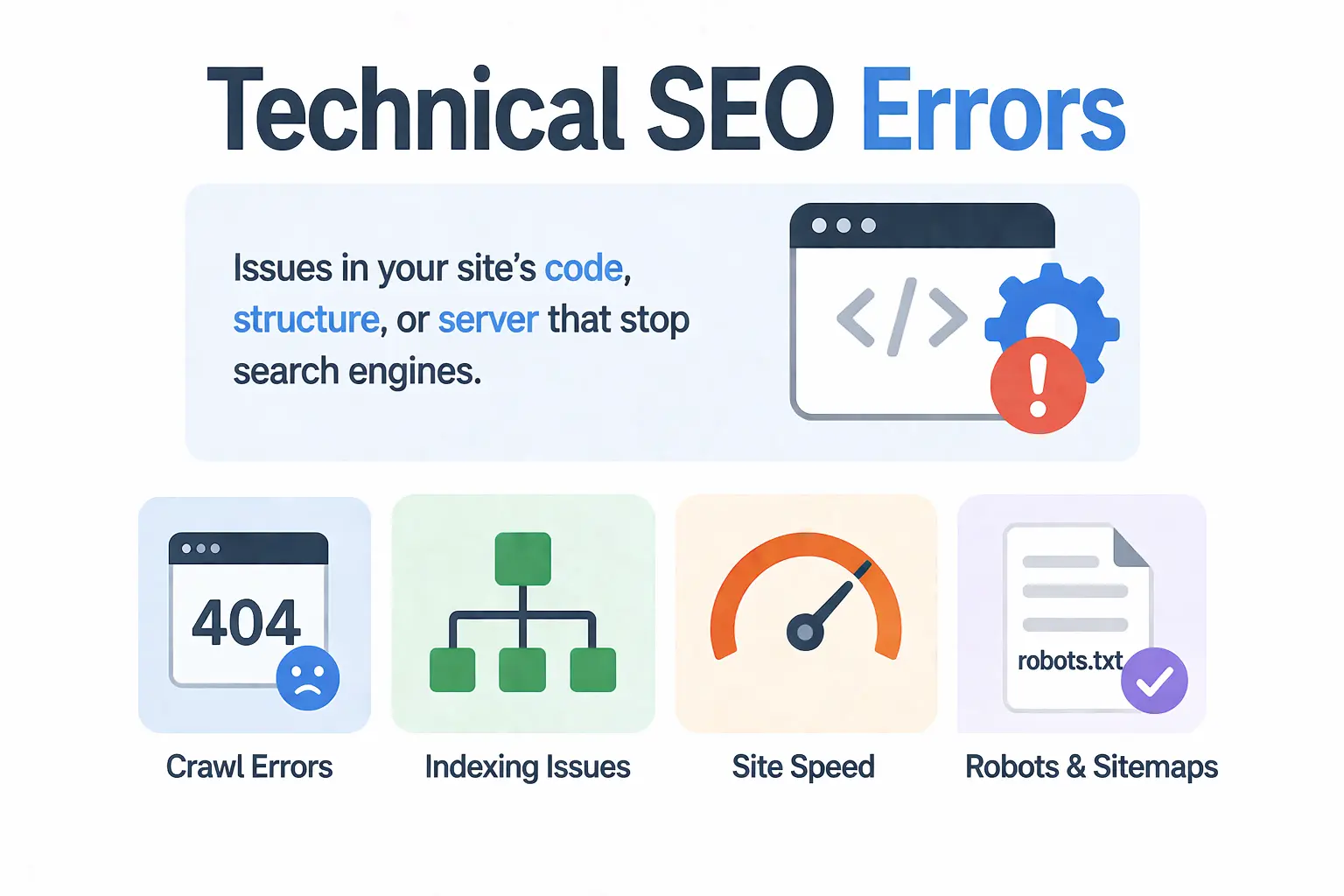
Technical SEO errors are problems that live inside your website’s code, structure, and server settings not in your content or your backlinks. They’re the behind-the-scenes issues that prevent search engines from doing their job properly.
Here’s a simple way to think about it: imagine your website is a book. Even if the content is brilliant, a torn spine, missing chapters, and unreadable font will stop readers from ever getting to the good parts. Technical SEO errors are essentially those structural problems they stop Google from “reading” your site.
Technical SEO is different from on-page SEO (which covers keywords, headers, and content quality) and off-page SEO (which covers backlinks and authority). Technical SEO deals with:
- How easily search bots can crawl your site
- Whether your pages are being indexed correctly
- How fast your site loads
- How your site behaves on mobile devices
- How your URLs, redirects, and internal structure are set up
Every website goes through a process before appearing on Google: crawling first, then indexing, then ranking. If technical errors exist at any of these stages, your pages simply don’t show up no matter how good your content is.
Why Fixing Technical SEO Errors Matters More in 2026
Google’s algorithms have become significantly smarter over the past few years. They no longer just check if your keywords match a query they deeply evaluate how your entire website performs. And even small technical oversights can now have major ranking consequences.
Here’s what’s changed in 2026 that makes technical SEO even more critical:
AI Search Engines Are Crawling Your Site Too
It’s not just Google anymore. ChatGPT Search, Perplexity, and other AI-powered answer engines now crawl websites to pull real-time information. If your site has technical errors that block crawling like restrictive robots.txt settings or slow load speeds you miss the opportunity to appear in AI-generated answers entirely.
Core Web Vitals Are a Confirmed Ranking Signal
Google officially uses Core Web Vitals metrics that measure real user experience as part of its ranking algorithm. Sites that meet these performance benchmarks see measurably better rankings and engagement. Sites that fail these checks get quietly pushed down.
Mobile-First Indexing Is the Default
Google now primarily evaluates the mobile version of your website, not the desktop version. If your mobile site has technical problems slow loading, broken layouts, or blocked resources your rankings suffer across all devices.
Content Alone Won’t Save You
Even the best-written, most thoroughly researched article won’t rank if it sits on a page that search engines can’t properly access. Technical SEO is the foundation without it, all other SEO efforts lose their effectiveness.
How to Run a Technical SEO Audit (Before Fixing Anything)
Before you fix a single thing, you need a clear picture of what’s actually broken. This is where a technical SEO audit comes in. Think of it as a health check for your website.
Step 1: Choose Your Tools
You don’t need a huge toolkit. These are the essential tools used by professionals:
- Google Search Console (free) your first stop for indexing issues, crawl errors, Core Web Vitals data, and mobile usability reports
- Screaming Frog crawls your entire site like a search engine, surfacing broken links, redirect chains, missing meta tags, and more
- Semrush Site Audit provides a full health score, flags technical issues, and tracks improvements over time
- PageSpeed Insights / Google Lighthouse analyses page speed and Core Web Vitals in detail
- Google’s Rich Results Test validates structured data and schema markup
Step 2: Crawl Your Site
Run Screaming Frog or Semrush’s Site Audit tool. This will give you a complete inventory of every page on your site and flag issues like broken links, duplicate content, missing meta tags, redirect problems, and poor structure.
Step 3: Check Google Search Console
Open GSC and review these three reports specifically:
- Pages Report shows which pages are indexed and which are excluded, and why
- Core Web Vitals Report highlights pages with poor loading, interactivity, or visual stability scores
- Mobile Usability Report flags pages with mobile-specific issues
Step 4: Categorize Issues by Priority
Once you have your data, don’t try to fix everything at once. Organize issues into three buckets:
- Critical fix immediately (these are actively harming your rankings or blocking indexing)
- Important fix within the next 1-2 weeks
- Nice-to-have address during your next planned maintenance
Working in this order saves you time and gets you results faster.
The 10 Most Common Technical SEO Errors (And How to Fix Them)
These are the issues that show up most often in technical SEO audits — and the ones most likely to be hurting your rankings right now.
1. Crawlability & Indexing Errors
If search engines can’t crawl your site, they can’t index it. If they can’t index it, it won’t rank. This is the most fundamental category of technical SEO errors.
Common causes:
- Robots.txt file accidentally blocking important pages (often left over from a staging environment)
- Noindex tags placed on pages that should be indexed — sometimes added by a developer and never removed
- Pages only accessible via JavaScript, which some bots struggle to render
How to fix it:
- Open your robots.txt file (yoursite.com/robots.txt) and check for any Disallow rules blocking important URLs
- In Google Search Console, go to the Pages report and look for pages excluded due to ‘noindex’ or ‘blocked by robots.txt’
- Use the URL Inspection tool in GSC to test individual pages and see how Googlebot views them
2. Broken Links & 404 Errors
Broken links — both internal and external create a poor experience for visitors and waste crawl budget. When a user (or a bot) clicks a link and lands on a 404 error page, that’s a dead end.
How to fix it:
- Use Screaming Frog to crawl your site and export all 4xx errors
- For pages that previously received traffic or had backlinks, set up a 301 redirect to the most relevant existing page
- For pages that were never important, a 404 is fine — no need to create a redirect
- Set up a custom 404 page that helps visitors find what they were looking for
3. Slow Page Speed & Core Web Vitals Failures
Page speed is both a user experience issue and a direct ranking factor. Google measures Core Web Vitals specifically Largest Contentful Paint (LCP), Cumulative Layout Shift (CLS), and Interaction to Next Paint (INP) and uses them in its ranking algorithm.
What each metric means in plain English:
- LCP how long it takes for the main content on a page to load. Aim for under 2.5 seconds
- CLS how much the page layout shifts around while loading. Aim for a score below 0.1
- INP how quickly your page responds when a user clicks or taps something. Aim for under 200ms
How to fix it:
- Compress and resize images (use WebP format where possible)
- Use a Content Delivery Network (CDN) to serve content faster to users in different locations
- Minify JavaScript and CSS files
- Enable browser caching so returning visitors load pages faster
- Reserve space for images and ads so they don’t cause layout shifts
4. Duplicate Content Issues
Duplicate content confuses search engines. When the same content exists at multiple URLs, Google doesn’t know which version to rank — so it might not rank any of them well, or it ranks the wrong one.
Common causes:
- www vs non-www versions of pages (e.g., www.yoursite.com/page and yoursite.com/page)
- HTTP vs HTTPS versions
- URL parameters creating multiple versions of the same page (e.g., /page?ref=newsletter)
- Printer-friendly or mobile versions of pages without canonicals
How to fix it:
- Set canonical tags (<link rel=”canonical”>) on all pages pointing to the preferred version
- Redirect all non-preferred versions (http, www, trailing slash variations) to a single canonical URL
- Use Google Search Console to identify and consolidate duplicate pages
5. Missing or Broken XML Sitemap
Your XML sitemap acts as a roadmap for search engines it tells them which pages exist on your site and when they were last updated. A missing, outdated, or broken sitemap means bots have to discover your pages on their own, which can lead to important content being missed.
Signs your sitemap has issues:
- GSC shows errors like ‘Submitted URL not found (404)’ in the Sitemaps report
- The sitemap includes redirected or noindexed URLs
- The sitemap hasn’t been updated to reflect new pages
How to fix it:
- Regenerate your sitemap (most CMS platforms like WordPress have plugins that do this automatically)
- Submit your sitemap to Google Search Console under the Sitemaps section
- Make sure your sitemap only includes pages you actually want indexed
6. HTTPS / SSL Certificate Errors
If your site isn’t served over HTTPS, browsers display a ‘Not Secure’ warning in the address bar. This immediately damages trust and Google uses HTTPS as a ranking signal.
How to fix it:
- Install an SSL certificate from a trusted provider (many hosting providers offer free SSL via Let’s Encrypt)
- Force all pages to redirect from HTTP to HTTPS
- Fix ‘mixed content’ issues these happen when an HTTPS page loads resources (images, scripts) over HTTP
- Use Screaming Frog or your browser’s developer tools to find mixed content warnings
7. Missing or Weak Meta Tags
Meta titles and meta descriptions are what users see in search results. If they’re missing, duplicated, or poorly written, your click-through rate suffers and so does your ranking potential.
Common issues:
- Pages with no meta title or meta description
- Multiple pages sharing the same title tag
- Titles that are too long (over 60 characters) or too short (under 30 characters)
- Meta descriptions that don’t include the target keyword or fail to entice clicks
How to fix it:
- Use Screaming Frog to export all meta titles and descriptions and identify duplicates or missing ones
- Write a unique, compelling title (50–60 characters) and meta description (150–160 characters) for every page
- Include your focused keyword naturally don’t stuff it
8. Mobile Usability Problems
Google uses mobile-first indexing, which means it primarily uses the mobile version of your site for crawling and ranking. If your mobile site has issues, your rankings take the hit — even for desktop searches.
Common mobile issues:
- Text too small to read without zooming
- Buttons and links too close together to tap accurately
- Intrusive pop-ups or interstitials blocking content
- Viewport not configured correctly
How to fix it:
- Run your site through Google’s Mobile-Friendly Test
- Add the viewport meta tag: <meta name=’viewport’ content=’width=device-width, initial-scale=1′>
- Avoid large pop-ups that cover the main content on mobile — Google penalizes these
- Test key pages on real devices, not just browser emulators
9. Structured Data / Schema Markup Errors
Schema markup is code added to your pages that helps search engines understand what your content is about. It also enables rich results — things like star ratings, FAQs, breadcrumbs, and recipe cards in search results. These dramatically improve click-through rates.
How to fix it:
- Use Google’s Rich Results Test to check your existing schema for errors
- Add relevant schema types for your content — Article, FAQ, Product, BreadcrumbList, Review, and LocalBusiness are the most common
- Implement schema using JSON-LD format (Google’s preferred method)
- Don’t mark up content that isn’t visible on the page — Google considers this deceptive
10. Redirect Chains & Loops
A redirect chain happens when page A redirects to page B, which redirects to page C, and so on. A redirect loop is when page A redirects to page B which redirects back to page A. Both are bad news for SEO.
They waste crawl budget, dilute link authority, and slow down page loading — all of which negatively impact your rankings.
How to fix it:
- Use Screaming Frog to crawl your site and identify redirect chains (look for pages with 301 chains)
- Update all redirects to point directly to the final destination URL — no middlemen
- If a redirect loop exists, trace it back and break the cycle by pointing one of the redirects to the correct final URL
How Often Should You Fix Technical SEO Errors?
Technical SEO isn’t a one-time task. Your website changes. Google’s algorithms evolve. New pages get added, old pages get removed, and server configurations get updated. Any of these changes can introduce new technical issues.
Here’s a simple maintenance schedule to follow:
- Monthly — check Google Search Console for new crawl errors, coverage issues, and Core Web Vitals changes
- Quarterly — run a full technical SEO audit using Screaming Frog or Semrush
- After major site changes — always run a quick audit after a redesign, migration, or significant content update
The earlier you catch issues, the less damage they do. A small crawl error ignored for six months can quietly cost you thousands of organic visitors.
Quick Technical SEO Error Checklist
Use this table as your go-to reference when running an audit or reviewing your site’s health:
| Technical SEO Error | Detection Tool | Quick Fix | Priority |
| Crawlability & Indexing Errors | Screaming Frog / GSC | Fix robots.txt, remove noindex | High |
| Broken Links / 404 Errors | Screaming Frog / Ahrefs | Set up 301 redirects | High |
| Slow Page Speed / Core Web Vitals | PageSpeed Insights / Lighthouse | Compress images, use CDN | High |
| Duplicate Content | Semrush / Screaming Frog | Add canonical tags | High |
| Broken / Missing XML Sitemap | Google Search Console | Regenerate & resubmit sitemap | High |
| HTTPS / SSL Errors | Browser / Screaming Frog | Install SSL, fix mixed content | High |
| Missing Meta Tags | Screaming Frog / Semrush | Write unique titles & meta desc | Medium |
| Mobile Usability Issues | Google Mobile-Friendly Test | Fix viewport, remove interstitials | Medium |
| Structured Data / Schema Errors | Rich Results Test | Add & validate schema markup | Medium |
| Redirect Chains & Loops | Screaming Frog | Point to final destination URL | Medium |
Frequently Asked Questions
What are technical SEO errors?
Technical SEO errors are problems within a website’s infrastructure — such as crawlability issues, broken links, slow page speed, or misconfigured redirects — that prevent search engines from properly accessing, indexing, and ranking the site’s pages.
How do I find technical SEO errors on my website?
The best starting point is Google Search Console, which is free and identifies crawl errors, indexing issues, and Core Web Vitals problems. For a deeper audit, use Screaming Frog (which crawls your entire site) and Semrush’s Site Audit tool. Both flag detailed issues with explanations and priority levels.
Can technical SEO errors cause a ranking drop?
Yes — and they’re often the hidden cause behind unexplained traffic drops. Issues like accidental noindex tags, blocked resources in robots.txt, or sudden page speed declines can cause rapid ranking decreases that look mysterious until the technical audit reveals the root cause.
How long does it take to fix technical SEO errors?
Simple fixes (like adding a missing meta tag or setting a canonical URL) can be done in minutes. More complex issues — like resolving widespread duplicate content or overhauling a slow site’s performance — can take days or weeks. Prioritizing critical issues first helps you get results faster.
What is the most common technical SEO error?
Crawlability and indexing errors tend to be the most impactful, but broken links (404 errors) and slow page speed are the most commonly found across websites of all sizes. Missing or incorrect meta tags are also extremely prevalent and easy to overlook.
Conclusion
Technical SEO errors are not the end of the world but they are the kind of problem that quietly compounds over time. The longer they go unfixed, the more rankings they cost you, and the harder it becomes to dig out of the hole.
The good news? Almost every technical SEO error on this list is fixable with the right tools and a little methodical effort. Start with a Google Search Console audit it’s free, takes about 15 minutes, and will immediately surface the most critical problems on your site.
From there, work through the checklist above in priority order. Fix the high-impact issues first (crawlability, indexing, page speed), then tackle the medium-priority items. With each fix, you’re building a stronger foundation that makes all your content and link-building efforts actually pay off. Remember: great content sitting on a broken website is like a great book locked in a room nobody can enter. Fix the technical SEO errors first then everything else starts working the way it should